> ## Documentation Index
> Fetch the complete documentation index at: https://docs-staging-feat-docs-5551-enterprise-connect.mintlify.site/llms.txt
> Use this file to discover all available pages before exploring further.

> Learn how to configure a progressive profile form using Forms for Actions

# Use Cases: Configure a progressive profile form using Forms

<Card title="Before you start">
  1. Create a [Machine-to-Machine Application](/docs/get-started/auth0-overview/create-applications/machine-to-machine-apps) with the following scopes enabled:

  * `read:users`
  * `update:users`
  * `create:users`
  * `read:users_app_metadata`
  * `update:users_app_metadata`
  * `create:users_app_metadata`

  2. Add a [Vault connection](/docs/customize/forms/vault) using the M2M application credentials.
</Card>

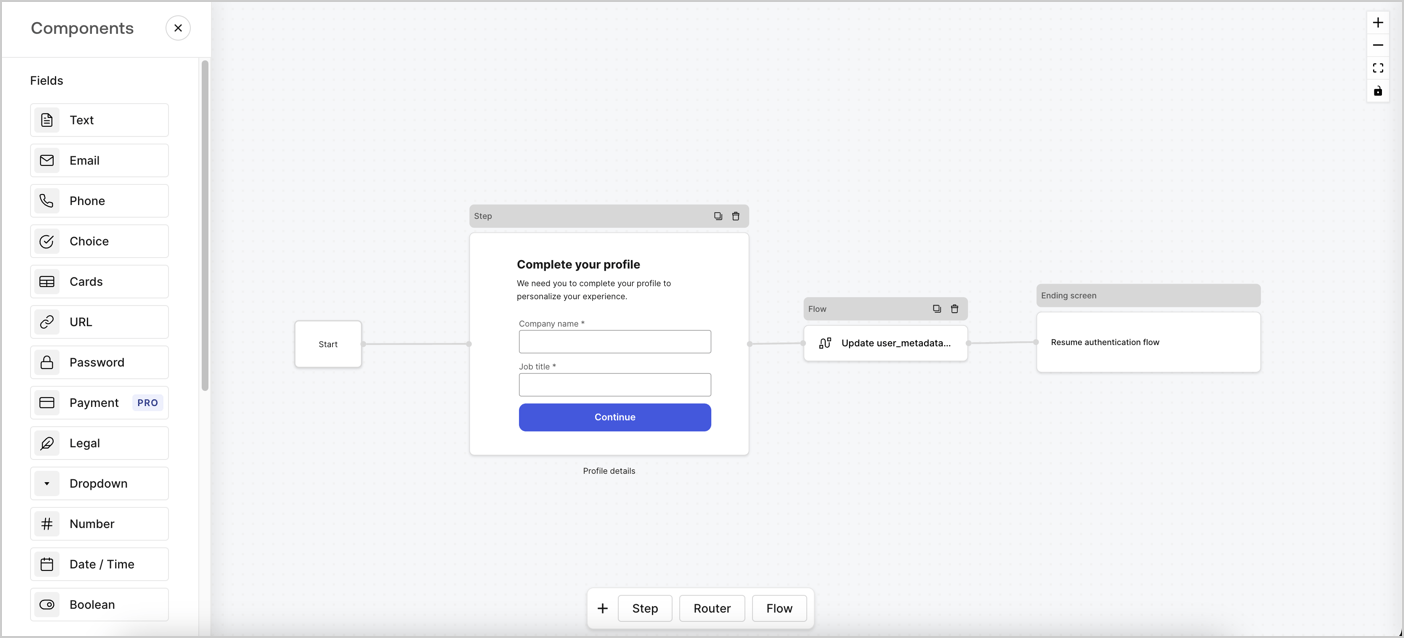
Forms for Actions allows you to create progressive profiling flows to decide when to prompt users to collect missing information, such as company name and job title, and store them as `user_metadata` attributes.
<Frame>
  <img src="https://mintcdn.com/docs-staging-feat-docs-5551-enterprise-connect/PZ_xn0Ama7YPIjab/docs/images/cdy7uua7fh8z/xUx9YmnHvnAqL19JvNtNP/60dae88f893d4ebe8e3523421e960596/Progressive-profle-overview.png?fit=max&auto=format&n=PZ_xn0Ama7YPIjab&q=85&s=10b31ab4a7d402b31e095c6e6f9b1159" alt="Dashboard > Actions > Forms > Form" data-og-width="1404" width="1404" data-og-height="638" height="638" data-path="docs/images/cdy7uua7fh8z/xUx9YmnHvnAqL19JvNtNP/60dae88f893d4ebe8e3523421e960596/Progressive-profle-overview.png" data-optimize="true" data-opv="3" srcset="https://mintcdn.com/docs-staging-feat-docs-5551-enterprise-connect/PZ_xn0Ama7YPIjab/docs/images/cdy7uua7fh8z/xUx9YmnHvnAqL19JvNtNP/60dae88f893d4ebe8e3523421e960596/Progressive-profle-overview.png?w=280&fit=max&auto=format&n=PZ_xn0Ama7YPIjab&q=85&s=c1b71b2ea22f8a4e5bf7a52ab8e9f408 280w, https://mintcdn.com/docs-staging-feat-docs-5551-enterprise-connect/PZ_xn0Ama7YPIjab/docs/images/cdy7uua7fh8z/xUx9YmnHvnAqL19JvNtNP/60dae88f893d4ebe8e3523421e960596/Progressive-profle-overview.png?w=560&fit=max&auto=format&n=PZ_xn0Ama7YPIjab&q=85&s=a84cdc01f92591bfac2f706cd721e674 560w, https://mintcdn.com/docs-staging-feat-docs-5551-enterprise-connect/PZ_xn0Ama7YPIjab/docs/images/cdy7uua7fh8z/xUx9YmnHvnAqL19JvNtNP/60dae88f893d4ebe8e3523421e960596/Progressive-profle-overview.png?w=840&fit=max&auto=format&n=PZ_xn0Ama7YPIjab&q=85&s=025e521e9eef3947c38e22c13e8ad865 840w, https://mintcdn.com/docs-staging-feat-docs-5551-enterprise-connect/PZ_xn0Ama7YPIjab/docs/images/cdy7uua7fh8z/xUx9YmnHvnAqL19JvNtNP/60dae88f893d4ebe8e3523421e960596/Progressive-profle-overview.png?w=1100&fit=max&auto=format&n=PZ_xn0Ama7YPIjab&q=85&s=d6aac18297a982a1db3472a838576adc 1100w, https://mintcdn.com/docs-staging-feat-docs-5551-enterprise-connect/PZ_xn0Ama7YPIjab/docs/images/cdy7uua7fh8z/xUx9YmnHvnAqL19JvNtNP/60dae88f893d4ebe8e3523421e960596/Progressive-profle-overview.png?w=1650&fit=max&auto=format&n=PZ_xn0Ama7YPIjab&q=85&s=d0ca775d0e468bc03f84853cd289abbf 1650w, https://mintcdn.com/docs-staging-feat-docs-5551-enterprise-connect/PZ_xn0Ama7YPIjab/docs/images/cdy7uua7fh8z/xUx9YmnHvnAqL19JvNtNP/60dae88f893d4ebe8e3523421e960596/Progressive-profle-overview.png?w=2500&fit=max&auto=format&n=PZ_xn0Ama7YPIjab&q=85&s=dfd1cd410997b78f7cdc94e4f3540910 2500w" />
</Frame>

The sections below outline how you can create a progressive profile form using nodes and flows, along with steps for adding your form to a [Post Login Action](/docs/customize/actions/explore-triggers/signup-and-login-triggers/login-trigger).

## Create a form from scratch

Follow these steps to create a form to gather information:

1. Open the Form editor by selecting **Auth0 Dashboard > Actions > Forms.**
2. Select **Create Form** > **Start from scratch**.

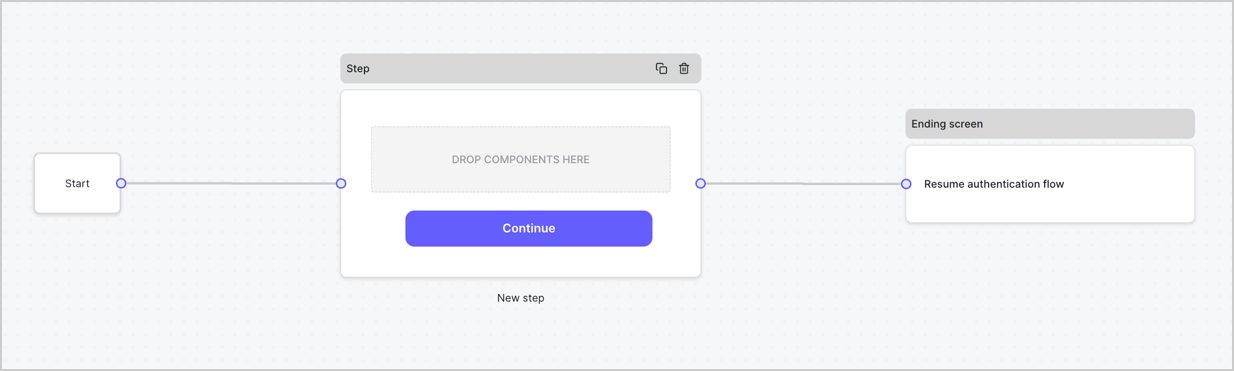
By default, a new form contains a Start node, a Step node, and an Ending screen node.
<Frame>
  <img src="https://mintcdn.com/docs-staging-feat-docs-5551-enterprise-connect/y7gSH-x-0EcsC_UH/docs/images/cdy7uua7fh8z/2TZ9jSjgEcARFpULI6hz4R/a4319a1bd482f2ee5cc23100fdb2f42c/New-form-Forms-for-action-use-case.png?fit=max&auto=format&n=y7gSH-x-0EcsC_UH&q=85&s=45a1c2c0399d497dda7194b03c66d667" alt="Dashboard > Forms > Use Cases > Form" data-og-width="1234" width="1234" data-og-height="371" height="371" data-path="docs/images/cdy7uua7fh8z/2TZ9jSjgEcARFpULI6hz4R/a4319a1bd482f2ee5cc23100fdb2f42c/New-form-Forms-for-action-use-case.png" data-optimize="true" data-opv="3" srcset="https://mintcdn.com/docs-staging-feat-docs-5551-enterprise-connect/y7gSH-x-0EcsC_UH/docs/images/cdy7uua7fh8z/2TZ9jSjgEcARFpULI6hz4R/a4319a1bd482f2ee5cc23100fdb2f42c/New-form-Forms-for-action-use-case.png?w=280&fit=max&auto=format&n=y7gSH-x-0EcsC_UH&q=85&s=84587bde5a3858793783cef4c517c433 280w, https://mintcdn.com/docs-staging-feat-docs-5551-enterprise-connect/y7gSH-x-0EcsC_UH/docs/images/cdy7uua7fh8z/2TZ9jSjgEcARFpULI6hz4R/a4319a1bd482f2ee5cc23100fdb2f42c/New-form-Forms-for-action-use-case.png?w=560&fit=max&auto=format&n=y7gSH-x-0EcsC_UH&q=85&s=616932df314c144dbf6da48350f44596 560w, https://mintcdn.com/docs-staging-feat-docs-5551-enterprise-connect/y7gSH-x-0EcsC_UH/docs/images/cdy7uua7fh8z/2TZ9jSjgEcARFpULI6hz4R/a4319a1bd482f2ee5cc23100fdb2f42c/New-form-Forms-for-action-use-case.png?w=840&fit=max&auto=format&n=y7gSH-x-0EcsC_UH&q=85&s=2ad6e3e4bde4ba3c31b27909ea321247 840w, https://mintcdn.com/docs-staging-feat-docs-5551-enterprise-connect/y7gSH-x-0EcsC_UH/docs/images/cdy7uua7fh8z/2TZ9jSjgEcARFpULI6hz4R/a4319a1bd482f2ee5cc23100fdb2f42c/New-form-Forms-for-action-use-case.png?w=1100&fit=max&auto=format&n=y7gSH-x-0EcsC_UH&q=85&s=0281ba78cb81be80b1f87dc92f4bd0cb 1100w, https://mintcdn.com/docs-staging-feat-docs-5551-enterprise-connect/y7gSH-x-0EcsC_UH/docs/images/cdy7uua7fh8z/2TZ9jSjgEcARFpULI6hz4R/a4319a1bd482f2ee5cc23100fdb2f42c/New-form-Forms-for-action-use-case.png?w=1650&fit=max&auto=format&n=y7gSH-x-0EcsC_UH&q=85&s=d29f91af4c8d06d6de6016e328d034d4 1650w, https://mintcdn.com/docs-staging-feat-docs-5551-enterprise-connect/y7gSH-x-0EcsC_UH/docs/images/cdy7uua7fh8z/2TZ9jSjgEcARFpULI6hz4R/a4319a1bd482f2ee5cc23100fdb2f42c/New-form-Forms-for-action-use-case.png?w=2500&fit=max&auto=format&n=y7gSH-x-0EcsC_UH&q=85&s=6b63a9898986d36002cb062362a8f490 2500w" />
</Frame>

### Configure the Step node

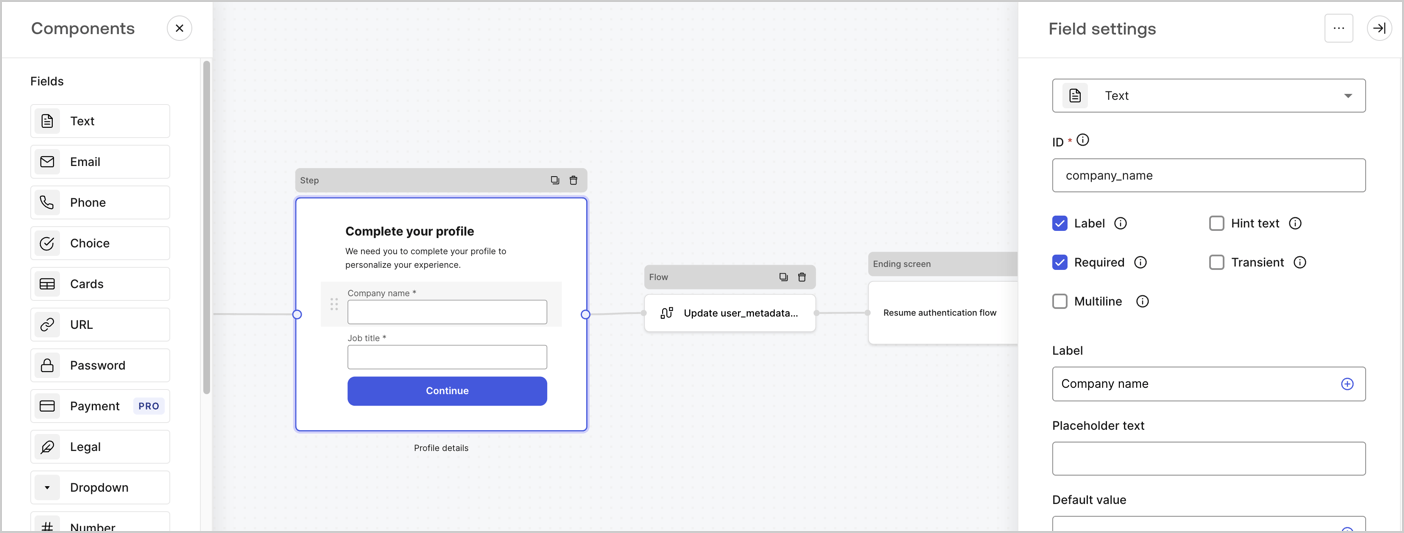
The Step node is the graphical interface visible to users. Add [Fields](/docs/customize/forms/nodes-and-components) to the Step node to collect the user's company name and job title values by following these steps:

1. Drag a **Rich text** field from the **Components menu** into the **Step** node.

   * **Rich text**: Enter a custom message.

     * **Example**: `Complete your profile! We need you to complete your profile to personalize your experience.`
   * Select **Save**.
2. Drag a **Text** field into the **Step** node.

   * **ID**: Enter `company_name`.
   * **Label**: Enable the checkbox.
   * **Label**: Enter `Company name`.
   * **Required**: Enable the checkbox.
   * Select **Save**.
3. Drag a **Text** field into the **Step** node.

   1. **ID**: Enter `job_title`.
   2. **Label**: Enter `Job title`.
   3. **Label**: Enable the checkbox.
   4. **Required**: Enable the checkbox.
   5. Select **Save**.
4. Select **Publish** to save.
<Frame>
  <img src="https://mintcdn.com/docs-staging-feat-docs-5551-enterprise-connect/rF2e_ZAMWmmbkboE/docs/images/cdy7uua7fh8z/6H1lRzwKyYioQyQJ9MtIoM/aa248e92fc028a68a5b92ff361a11644/progressive-profile-step.png?fit=max&auto=format&n=rF2e_ZAMWmmbkboE&q=85&s=8249bda013d6a03bd86d4f8dc312ef73" alt="Dashboard > Actions > Forms > Form > Step node" data-og-width="1404" width="1404" data-og-height="533" height="533" data-path="docs/images/cdy7uua7fh8z/6H1lRzwKyYioQyQJ9MtIoM/aa248e92fc028a68a5b92ff361a11644/progressive-profile-step.png" data-optimize="true" data-opv="3" srcset="https://mintcdn.com/docs-staging-feat-docs-5551-enterprise-connect/rF2e_ZAMWmmbkboE/docs/images/cdy7uua7fh8z/6H1lRzwKyYioQyQJ9MtIoM/aa248e92fc028a68a5b92ff361a11644/progressive-profile-step.png?w=280&fit=max&auto=format&n=rF2e_ZAMWmmbkboE&q=85&s=c18365b01c0cbbe52a08087d179eb4dd 280w, https://mintcdn.com/docs-staging-feat-docs-5551-enterprise-connect/rF2e_ZAMWmmbkboE/docs/images/cdy7uua7fh8z/6H1lRzwKyYioQyQJ9MtIoM/aa248e92fc028a68a5b92ff361a11644/progressive-profile-step.png?w=560&fit=max&auto=format&n=rF2e_ZAMWmmbkboE&q=85&s=8407850edc4ddeb28a783292f01d9116 560w, https://mintcdn.com/docs-staging-feat-docs-5551-enterprise-connect/rF2e_ZAMWmmbkboE/docs/images/cdy7uua7fh8z/6H1lRzwKyYioQyQJ9MtIoM/aa248e92fc028a68a5b92ff361a11644/progressive-profile-step.png?w=840&fit=max&auto=format&n=rF2e_ZAMWmmbkboE&q=85&s=a2dafd973309727e8be46f44cd5e2e64 840w, https://mintcdn.com/docs-staging-feat-docs-5551-enterprise-connect/rF2e_ZAMWmmbkboE/docs/images/cdy7uua7fh8z/6H1lRzwKyYioQyQJ9MtIoM/aa248e92fc028a68a5b92ff361a11644/progressive-profile-step.png?w=1100&fit=max&auto=format&n=rF2e_ZAMWmmbkboE&q=85&s=c7ae46c356bed68ba561bab72615fcc6 1100w, https://mintcdn.com/docs-staging-feat-docs-5551-enterprise-connect/rF2e_ZAMWmmbkboE/docs/images/cdy7uua7fh8z/6H1lRzwKyYioQyQJ9MtIoM/aa248e92fc028a68a5b92ff361a11644/progressive-profile-step.png?w=1650&fit=max&auto=format&n=rF2e_ZAMWmmbkboE&q=85&s=802c7aa0da9ab274a88ca942547271e8 1650w, https://mintcdn.com/docs-staging-feat-docs-5551-enterprise-connect/rF2e_ZAMWmmbkboE/docs/images/cdy7uua7fh8z/6H1lRzwKyYioQyQJ9MtIoM/aa248e92fc028a68a5b92ff361a11644/progressive-profile-step.png?w=2500&fit=max&auto=format&n=rF2e_ZAMWmmbkboE&q=85&s=15816cd2270bf64981ee43cc5680886f 2500w" />
</Frame>

### Configure the flow node

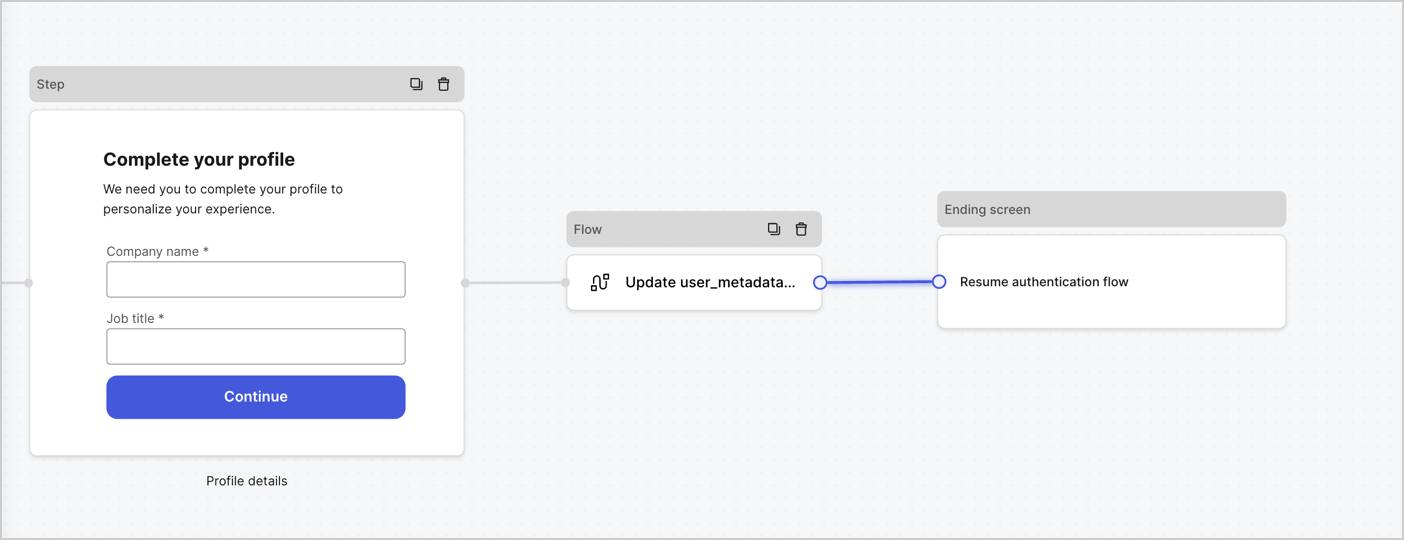
Add a **Flow** node after the **Step** node to update the `user_metadata` and resume the authentication flow by following these steps:

1. Select **Flow** from the bottom of the Form editor.
2. Remove the existing link between the **Step** and **Ending Screen** nodes.
3. Select the new **Flow** > **Click to add a flow** > **Create a new flow.**

   * Enter `Update user_metadata` in the **Name** field.
   * Select **Create**.
   * Select **Save**.
4. Link the **Flow** node to the **Step** and **Ending Screen** nodes as pictured below.
5. Select **Publish** to save.
<Frame>
  <img src="https://mintcdn.com/docs-staging-feat-docs-5551-enterprise-connect/mYOTb8M9XSN5RkgK/docs/images/cdy7uua7fh8z/5C91DaWn4LGtJT9BF87ssu/095171d0c452a287c44bfde12fd6d13f/link-nodes.png?fit=max&auto=format&n=mYOTb8M9XSN5RkgK&q=85&s=e26a8ba327cac666991e0d7435320909" alt="Dashboard > Actions > Forms > Form" data-og-width="1404" width="1404" data-og-height="540" height="540" data-path="docs/images/cdy7uua7fh8z/5C91DaWn4LGtJT9BF87ssu/095171d0c452a287c44bfde12fd6d13f/link-nodes.png" data-optimize="true" data-opv="3" srcset="https://mintcdn.com/docs-staging-feat-docs-5551-enterprise-connect/mYOTb8M9XSN5RkgK/docs/images/cdy7uua7fh8z/5C91DaWn4LGtJT9BF87ssu/095171d0c452a287c44bfde12fd6d13f/link-nodes.png?w=280&fit=max&auto=format&n=mYOTb8M9XSN5RkgK&q=85&s=1c75de0b9f399c35aa77ff9e34070834 280w, https://mintcdn.com/docs-staging-feat-docs-5551-enterprise-connect/mYOTb8M9XSN5RkgK/docs/images/cdy7uua7fh8z/5C91DaWn4LGtJT9BF87ssu/095171d0c452a287c44bfde12fd6d13f/link-nodes.png?w=560&fit=max&auto=format&n=mYOTb8M9XSN5RkgK&q=85&s=3577b93c709ded5883a752a355d2db9c 560w, https://mintcdn.com/docs-staging-feat-docs-5551-enterprise-connect/mYOTb8M9XSN5RkgK/docs/images/cdy7uua7fh8z/5C91DaWn4LGtJT9BF87ssu/095171d0c452a287c44bfde12fd6d13f/link-nodes.png?w=840&fit=max&auto=format&n=mYOTb8M9XSN5RkgK&q=85&s=4b23f10d975f90e7999463e18532172e 840w, https://mintcdn.com/docs-staging-feat-docs-5551-enterprise-connect/mYOTb8M9XSN5RkgK/docs/images/cdy7uua7fh8z/5C91DaWn4LGtJT9BF87ssu/095171d0c452a287c44bfde12fd6d13f/link-nodes.png?w=1100&fit=max&auto=format&n=mYOTb8M9XSN5RkgK&q=85&s=61322bb811974171a9eecabd86a63ed5 1100w, https://mintcdn.com/docs-staging-feat-docs-5551-enterprise-connect/mYOTb8M9XSN5RkgK/docs/images/cdy7uua7fh8z/5C91DaWn4LGtJT9BF87ssu/095171d0c452a287c44bfde12fd6d13f/link-nodes.png?w=1650&fit=max&auto=format&n=mYOTb8M9XSN5RkgK&q=85&s=13a46bf39153ee33f8c0bfddcd125cb7 1650w, https://mintcdn.com/docs-staging-feat-docs-5551-enterprise-connect/mYOTb8M9XSN5RkgK/docs/images/cdy7uua7fh8z/5C91DaWn4LGtJT9BF87ssu/095171d0c452a287c44bfde12fd6d13f/link-nodes.png?w=2500&fit=max&auto=format&n=mYOTb8M9XSN5RkgK&q=85&s=e754845cae8b4e7489d765ad1a75c56c 2500w" />
</Frame>

Add an Auth0 Update user action to the flow by following these steps:

1. Select the **Update user\_metadata** flow, then select the **Edit Flow** to open the Flow editor in a new tab.
2. Below the **Start** action, select the **+** icon to add an **Update user** action. Complete the fields below, then select **Save** to continue.

   * **Connection**: Select from the dropdown the Vault connection to your M2M application.

   * **User ID**: Enter `{{context.user.user_id}}`.

   * **Body**: Copy and paste the following code to update the user\_metadata with `job_title` and `company_name` properties.

     ```json lines theme={null}
     {
        "user_metadata": {
           "job_title": "{{fields.job_title}}",
           "company_name": "{{fields.company_name}}"
        }
     }
     ```

   * Select **Save**.
3. Select **Publish** to save.

<Frame>
  <img src="https://mintcdn.com/docs-staging-feat-docs-5551-enterprise-connect/UNCubpLcK3lj35bn/docs/images/cdy7uua7fh8z/65Jx4W5oIZJyyvA8z4HqIx/0661b1a8ca6361c54fc4fef07ba59f0b/update-user.png?fit=max&auto=format&n=UNCubpLcK3lj35bn&q=85&s=a3c9590c000a88631397d2f37c70ec80" alt="Dashboard > Actions > Forms > Flows" data-og-width="1404" width="1404" data-og-height="244" height="244" data-path="docs/images/cdy7uua7fh8z/65Jx4W5oIZJyyvA8z4HqIx/0661b1a8ca6361c54fc4fef07ba59f0b/update-user.png" data-optimize="true" data-opv="3" srcset="https://mintcdn.com/docs-staging-feat-docs-5551-enterprise-connect/UNCubpLcK3lj35bn/docs/images/cdy7uua7fh8z/65Jx4W5oIZJyyvA8z4HqIx/0661b1a8ca6361c54fc4fef07ba59f0b/update-user.png?w=280&fit=max&auto=format&n=UNCubpLcK3lj35bn&q=85&s=ef515671a8704d137d3f2a2f942949b5 280w, https://mintcdn.com/docs-staging-feat-docs-5551-enterprise-connect/UNCubpLcK3lj35bn/docs/images/cdy7uua7fh8z/65Jx4W5oIZJyyvA8z4HqIx/0661b1a8ca6361c54fc4fef07ba59f0b/update-user.png?w=560&fit=max&auto=format&n=UNCubpLcK3lj35bn&q=85&s=19e4e44a943f36b28d3cd38178cd2d9a 560w, https://mintcdn.com/docs-staging-feat-docs-5551-enterprise-connect/UNCubpLcK3lj35bn/docs/images/cdy7uua7fh8z/65Jx4W5oIZJyyvA8z4HqIx/0661b1a8ca6361c54fc4fef07ba59f0b/update-user.png?w=840&fit=max&auto=format&n=UNCubpLcK3lj35bn&q=85&s=124b757178965866ed5f644ed3fc0d14 840w, https://mintcdn.com/docs-staging-feat-docs-5551-enterprise-connect/UNCubpLcK3lj35bn/docs/images/cdy7uua7fh8z/65Jx4W5oIZJyyvA8z4HqIx/0661b1a8ca6361c54fc4fef07ba59f0b/update-user.png?w=1100&fit=max&auto=format&n=UNCubpLcK3lj35bn&q=85&s=d2f8e223b5c210389df108d1a0e723d0 1100w, https://mintcdn.com/docs-staging-feat-docs-5551-enterprise-connect/UNCubpLcK3lj35bn/docs/images/cdy7uua7fh8z/65Jx4W5oIZJyyvA8z4HqIx/0661b1a8ca6361c54fc4fef07ba59f0b/update-user.png?w=1650&fit=max&auto=format&n=UNCubpLcK3lj35bn&q=85&s=3a5a31dbae5dcd44a006220de417aa03 1650w, https://mintcdn.com/docs-staging-feat-docs-5551-enterprise-connect/UNCubpLcK3lj35bn/docs/images/cdy7uua7fh8z/65Jx4W5oIZJyyvA8z4HqIx/0661b1a8ca6361c54fc4fef07ba59f0b/update-user.png?w=2500&fit=max&auto=format&n=UNCubpLcK3lj35bn&q=85&s=3108c87fb036863ff1923509926c14ad 2500w" />
</Frame>

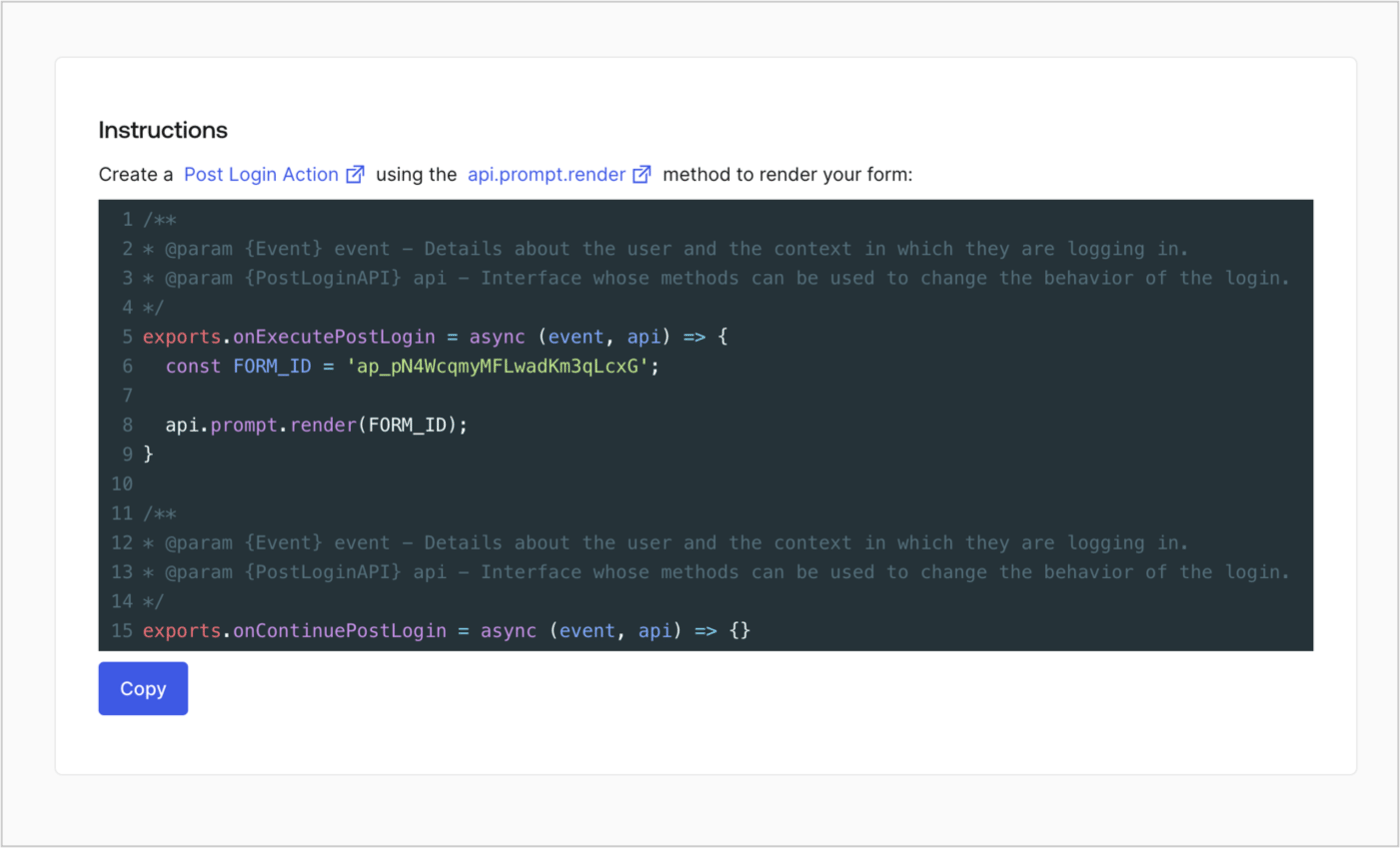
### Retrieve the form render code

Retrieve the form render code to visually render the form with a custom Post Login Action by following these steps:

* From the Form editor, select **`<> Render`**.
* Select **Copy**.
<Frame>
  <img src="https://mintcdn.com/docs-staging-feat-docs-5551-enterprise-connect/TXIqZlkIsaItNUBm/docs/images/cdy7uua7fh8z/2EIUzc539sq9lwoTKbjoJv/496a864c0fc44a782c9cadca119dbfb0/embed.png?fit=max&auto=format&n=TXIqZlkIsaItNUBm&q=85&s=49f6540cba3cdc6a435f678ea25f8bc6" alt="Dashboard > Actions > Forms > Form > Embed" data-og-width="1400" width="1400" data-og-height="848" height="848" data-path="docs/images/cdy7uua7fh8z/2EIUzc539sq9lwoTKbjoJv/496a864c0fc44a782c9cadca119dbfb0/embed.png" data-optimize="true" data-opv="3" srcset="https://mintcdn.com/docs-staging-feat-docs-5551-enterprise-connect/TXIqZlkIsaItNUBm/docs/images/cdy7uua7fh8z/2EIUzc539sq9lwoTKbjoJv/496a864c0fc44a782c9cadca119dbfb0/embed.png?w=280&fit=max&auto=format&n=TXIqZlkIsaItNUBm&q=85&s=7b5916bc92f44cbe46d35e83f9db1ff0 280w, https://mintcdn.com/docs-staging-feat-docs-5551-enterprise-connect/TXIqZlkIsaItNUBm/docs/images/cdy7uua7fh8z/2EIUzc539sq9lwoTKbjoJv/496a864c0fc44a782c9cadca119dbfb0/embed.png?w=560&fit=max&auto=format&n=TXIqZlkIsaItNUBm&q=85&s=94ad52675ba729466711525f6e1638d8 560w, https://mintcdn.com/docs-staging-feat-docs-5551-enterprise-connect/TXIqZlkIsaItNUBm/docs/images/cdy7uua7fh8z/2EIUzc539sq9lwoTKbjoJv/496a864c0fc44a782c9cadca119dbfb0/embed.png?w=840&fit=max&auto=format&n=TXIqZlkIsaItNUBm&q=85&s=f30fd7d0e3c2175a6ce7e8471b2a6d9f 840w, https://mintcdn.com/docs-staging-feat-docs-5551-enterprise-connect/TXIqZlkIsaItNUBm/docs/images/cdy7uua7fh8z/2EIUzc539sq9lwoTKbjoJv/496a864c0fc44a782c9cadca119dbfb0/embed.png?w=1100&fit=max&auto=format&n=TXIqZlkIsaItNUBm&q=85&s=1e3651033c8de1bb8906dcd59c1946bb 1100w, https://mintcdn.com/docs-staging-feat-docs-5551-enterprise-connect/TXIqZlkIsaItNUBm/docs/images/cdy7uua7fh8z/2EIUzc539sq9lwoTKbjoJv/496a864c0fc44a782c9cadca119dbfb0/embed.png?w=1650&fit=max&auto=format&n=TXIqZlkIsaItNUBm&q=85&s=6a7601e6d1bb8c46424c71887f09da95 1650w, https://mintcdn.com/docs-staging-feat-docs-5551-enterprise-connect/TXIqZlkIsaItNUBm/docs/images/cdy7uua7fh8z/2EIUzc539sq9lwoTKbjoJv/496a864c0fc44a782c9cadca119dbfb0/embed.png?w=2500&fit=max&auto=format&n=TXIqZlkIsaItNUBm&q=85&s=a9689c63398b2f5e6c91f7e4782444b5 2500w" />
</Frame>

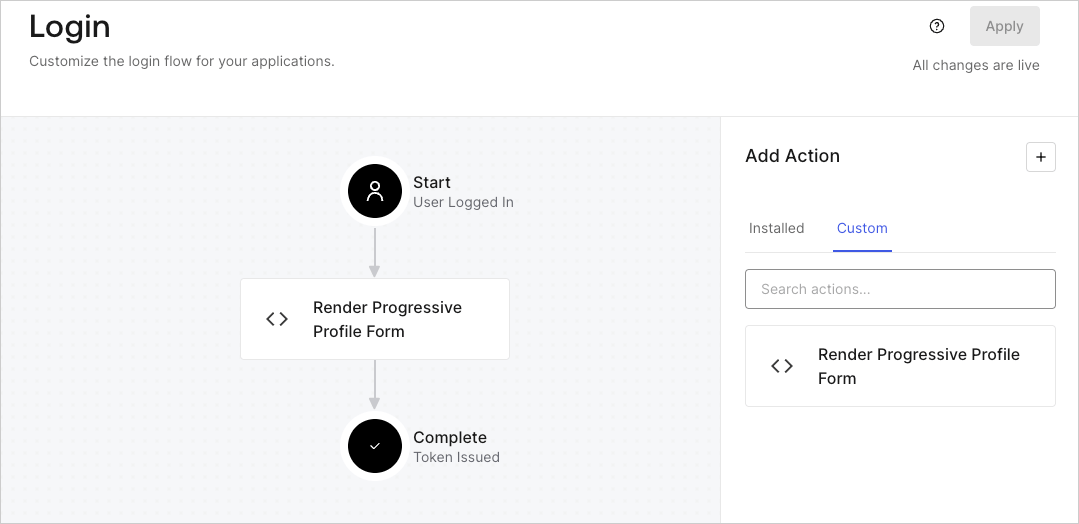
## Create a Post Login Action

Create a post-login Action to render your form by following these steps:

1. Navigate to **Auth0 Dashboard > Actions > Flows > Login.**
2. Select the **+** icon and select **Build from scratch**:

   * **Name**: Enter `Render Progressive Profile Form`.
   * **Trigger**: Select `Login / Post Login`.
   * **Runtime**: Select the recommended version.
3. Select **Create**.

To configure the post-login Action:

1. Delete the existing code from the Code editor.
2. Paste the form embed code into the Code editor.
3. Edit the code to define the conditional logic that will render the form.

   ```javascript lines theme={null}
   /**
   * @param {Event} event - Details about the user and the context in which they are logging in.
   * @param {PostLoginAPI} api - Interface whose methods can be used to change the behavior of the login.
   */
   exports.onExecutePostLogin = async (event, api) => {
     const FORM_ID = 'REPLACE_WITH_YOUR_FORM_ID';

     if (
       event.stats.logins_count > 2 &&
       !event.user.user_metadata.company_name &&
       !event.user.user_metadata.job_title
     ) {
       api.prompt.render(FORM_ID);
     }
   }

   exports.onContinuePostLogin = async (event, api) => { }
   ```

   <Callout icon="file-lines" color="#0EA5E9" iconType="regular">
     The example code above will render the form when a user has a login count > 2 and is missing the user metadata company\_name and job\_title properties.
   </Callout>
4. Select **Deploy.**
5. Drag and Drop the **Render Progressive Profile Form** Action to the **Login** flow.
   <Frame>
     <img src="https://mintcdn.com/docs-staging-feat-docs-5551-enterprise-connect/zflGzM0X6qAJ4TmG/docs/images/cdy7uua7fh8z/1QjjZdpTqTxx012UDN4xk9/99fba5ef4068a5688f1762eea7f42976/renderprogessiveprofile.png?fit=max&auto=format&n=zflGzM0X6qAJ4TmG&q=85&s=260a7d6b14dcd6b83fcb6d8baef44977" alt="Dashboard > Forms > Use Cases Progressive Profile Login Action" data-og-width="1079" width="1079" data-og-height="524" height="524" data-path="docs/images/cdy7uua7fh8z/1QjjZdpTqTxx012UDN4xk9/99fba5ef4068a5688f1762eea7f42976/renderprogessiveprofile.png" data-optimize="true" data-opv="3" srcset="https://mintcdn.com/docs-staging-feat-docs-5551-enterprise-connect/zflGzM0X6qAJ4TmG/docs/images/cdy7uua7fh8z/1QjjZdpTqTxx012UDN4xk9/99fba5ef4068a5688f1762eea7f42976/renderprogessiveprofile.png?w=280&fit=max&auto=format&n=zflGzM0X6qAJ4TmG&q=85&s=030ff3d8476b14b0f7523a47ee918af1 280w, https://mintcdn.com/docs-staging-feat-docs-5551-enterprise-connect/zflGzM0X6qAJ4TmG/docs/images/cdy7uua7fh8z/1QjjZdpTqTxx012UDN4xk9/99fba5ef4068a5688f1762eea7f42976/renderprogessiveprofile.png?w=560&fit=max&auto=format&n=zflGzM0X6qAJ4TmG&q=85&s=5d4ffeefc2273482e7e843d678f25179 560w, https://mintcdn.com/docs-staging-feat-docs-5551-enterprise-connect/zflGzM0X6qAJ4TmG/docs/images/cdy7uua7fh8z/1QjjZdpTqTxx012UDN4xk9/99fba5ef4068a5688f1762eea7f42976/renderprogessiveprofile.png?w=840&fit=max&auto=format&n=zflGzM0X6qAJ4TmG&q=85&s=0ed84d3f4858c6b3675093b89ac8b175 840w, https://mintcdn.com/docs-staging-feat-docs-5551-enterprise-connect/zflGzM0X6qAJ4TmG/docs/images/cdy7uua7fh8z/1QjjZdpTqTxx012UDN4xk9/99fba5ef4068a5688f1762eea7f42976/renderprogessiveprofile.png?w=1100&fit=max&auto=format&n=zflGzM0X6qAJ4TmG&q=85&s=a1180aaf20e9adb81b907f94a35d7aeb 1100w, https://mintcdn.com/docs-staging-feat-docs-5551-enterprise-connect/zflGzM0X6qAJ4TmG/docs/images/cdy7uua7fh8z/1QjjZdpTqTxx012UDN4xk9/99fba5ef4068a5688f1762eea7f42976/renderprogessiveprofile.png?w=1650&fit=max&auto=format&n=zflGzM0X6qAJ4TmG&q=85&s=888ec8b4965b8b234ab4f306078ca07e 1650w, https://mintcdn.com/docs-staging-feat-docs-5551-enterprise-connect/zflGzM0X6qAJ4TmG/docs/images/cdy7uua7fh8z/1QjjZdpTqTxx012UDN4xk9/99fba5ef4068a5688f1762eea7f42976/renderprogessiveprofile.png?w=2500&fit=max&auto=format&n=zflGzM0X6qAJ4TmG&q=85&s=171668020656587b67b5c88f1c83e20a 2500w" />
   </Frame>
6. Select **Apply**.

### Test implementation

Test the implementation by following these steps:

1. Log in with an existing user whose login count is greater than 2 and their `user_metadata` attributes `company_name` and `job_title` have no values.
2. The post-login action in the Login flow will render the form and prompt for the information.
3. Select **Auth0 Dashboard > User Management > Users,** locate the user and verify that the `user_metadata` attributes `company_name` and `job_title` contain information.
