> ## Documentation Index
> Fetch the complete documentation index at: https://docs-staging-feat-docs-5551-enterprise-connect.mintlify.site/llms.txt
> Use this file to discover all available pages before exploring further.

> Learn how to configure an update policy form using Forms for Actions for users to review and accept new terms of service or consent updates.

# Use Cases: Configure an update policy form using Forms

<Card title="Before you start">
  1. Create a [Machine-to-Machine Application](/docs/get-started/auth0-overview/create-applications/machine-to-machine-apps) with the following scopes enabled:

  * `read:users`
  * `update:users`
  * `create:users`
  * `read:users_app_metadata`
  * `update:users_app_metadata`
  * `create:users_app_metadata`

  2. Add a [Vault connection](/docs/customize/forms/vault) using the M2M application credentials.
</Card>

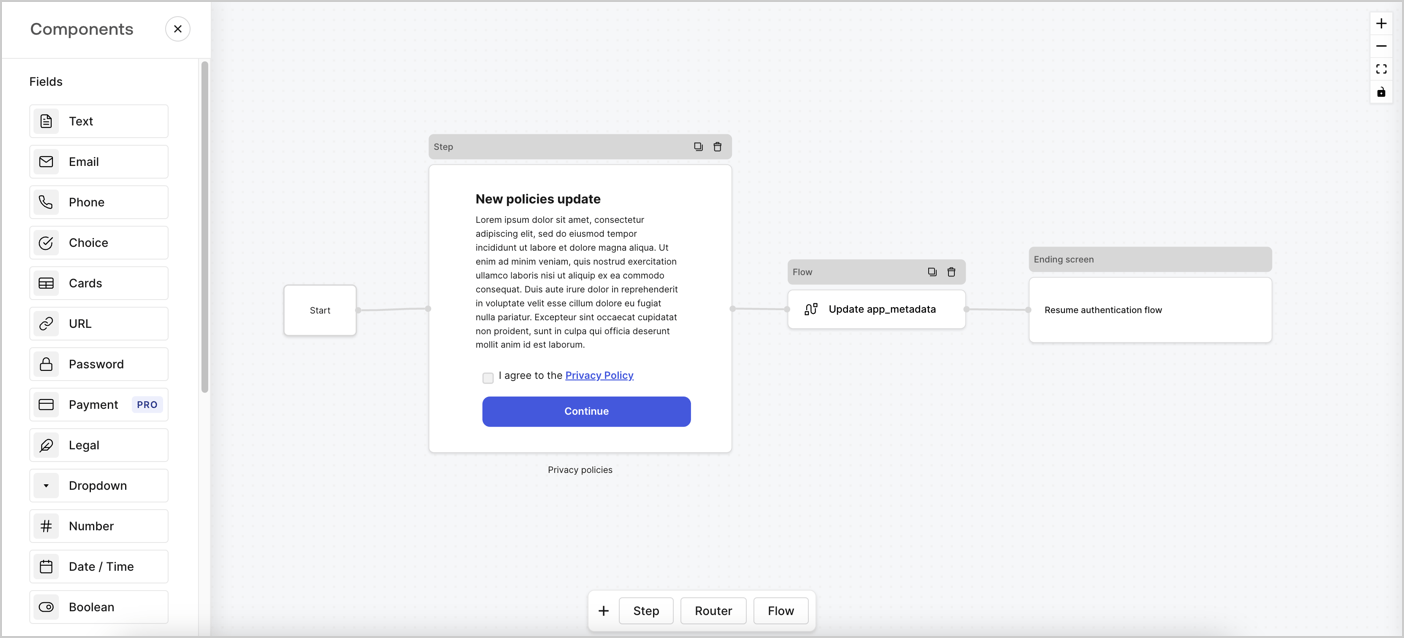
Forms for Actions allows you to create custom privacy policies flows and store the consent under the `app_metadata` object.
<Frame>
  <img src="https://mintcdn.com/docs-staging-feat-docs-5551-enterprise-connect/rF2e_ZAMWmmbkboE/docs/images/cdy7uua7fh8z/6i68dMvHDTijfRmSgN1x8Q/ad900e7d4c0fb34645921435472b8684/privavy-policy-form.png?fit=max&auto=format&n=rF2e_ZAMWmmbkboE&q=85&s=36a583f5c75d577145d156defb70dae1" alt="Dashboard > Actions > Forms > Privacy policy use case" data-og-width="1404" width="1404" data-og-height="638" height="638" data-path="docs/images/cdy7uua7fh8z/6i68dMvHDTijfRmSgN1x8Q/ad900e7d4c0fb34645921435472b8684/privavy-policy-form.png" data-optimize="true" data-opv="3" srcset="https://mintcdn.com/docs-staging-feat-docs-5551-enterprise-connect/rF2e_ZAMWmmbkboE/docs/images/cdy7uua7fh8z/6i68dMvHDTijfRmSgN1x8Q/ad900e7d4c0fb34645921435472b8684/privavy-policy-form.png?w=280&fit=max&auto=format&n=rF2e_ZAMWmmbkboE&q=85&s=1146058cf52d3b24fe0978615915069a 280w, https://mintcdn.com/docs-staging-feat-docs-5551-enterprise-connect/rF2e_ZAMWmmbkboE/docs/images/cdy7uua7fh8z/6i68dMvHDTijfRmSgN1x8Q/ad900e7d4c0fb34645921435472b8684/privavy-policy-form.png?w=560&fit=max&auto=format&n=rF2e_ZAMWmmbkboE&q=85&s=7f265b708109315822db4768092dbead 560w, https://mintcdn.com/docs-staging-feat-docs-5551-enterprise-connect/rF2e_ZAMWmmbkboE/docs/images/cdy7uua7fh8z/6i68dMvHDTijfRmSgN1x8Q/ad900e7d4c0fb34645921435472b8684/privavy-policy-form.png?w=840&fit=max&auto=format&n=rF2e_ZAMWmmbkboE&q=85&s=f88f437b3934b82ab176f493cec8fd1a 840w, https://mintcdn.com/docs-staging-feat-docs-5551-enterprise-connect/rF2e_ZAMWmmbkboE/docs/images/cdy7uua7fh8z/6i68dMvHDTijfRmSgN1x8Q/ad900e7d4c0fb34645921435472b8684/privavy-policy-form.png?w=1100&fit=max&auto=format&n=rF2e_ZAMWmmbkboE&q=85&s=3defb78da1b8c89e5e3b610b095db7c0 1100w, https://mintcdn.com/docs-staging-feat-docs-5551-enterprise-connect/rF2e_ZAMWmmbkboE/docs/images/cdy7uua7fh8z/6i68dMvHDTijfRmSgN1x8Q/ad900e7d4c0fb34645921435472b8684/privavy-policy-form.png?w=1650&fit=max&auto=format&n=rF2e_ZAMWmmbkboE&q=85&s=0816185d5da76acb7d7edcc174da8582 1650w, https://mintcdn.com/docs-staging-feat-docs-5551-enterprise-connect/rF2e_ZAMWmmbkboE/docs/images/cdy7uua7fh8z/6i68dMvHDTijfRmSgN1x8Q/ad900e7d4c0fb34645921435472b8684/privavy-policy-form.png?w=2500&fit=max&auto=format&n=rF2e_ZAMWmmbkboE&q=85&s=fbf913f299bf7f0526e1d07a1a790a1c 2500w" />
</Frame>

The sections below outline how you can create an Update Policy form using nodes and flows, along with steps for adding your form to a [Post Login](/docs/customize/actions/explore-triggers/signup-and-login-triggers/login-trigger) Action.

## Create a form from scratch

Follow these steps to create a form to gather information:

1. Open the Form editor by selecting **Auth0 Dashboard > Actions > Forms.**
2. Select **Create Form** > **Start from scratch**.

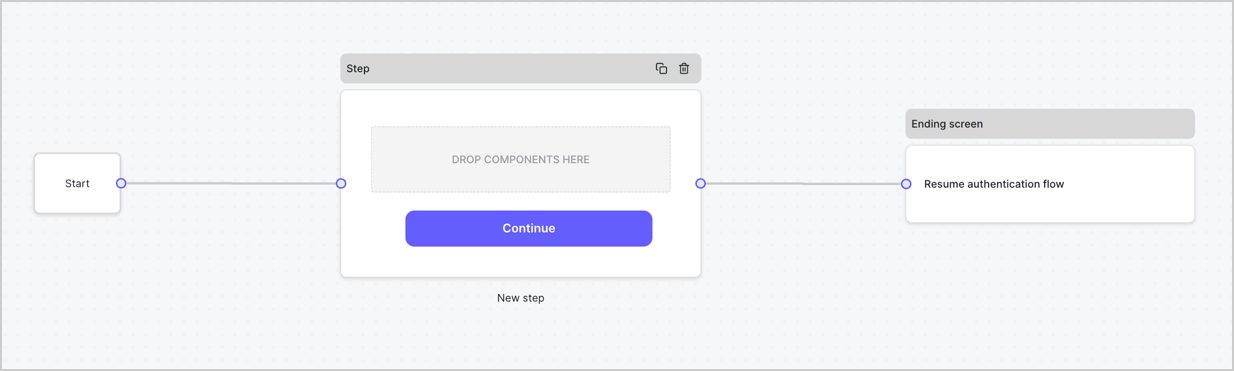
By default, a new form contains a Start node, a Step node, and an Ending screen node.
<Frame>
  <img src="https://mintcdn.com/docs-staging-feat-docs-5551-enterprise-connect/y7gSH-x-0EcsC_UH/docs/images/cdy7uua7fh8z/2TZ9jSjgEcARFpULI6hz4R/a4319a1bd482f2ee5cc23100fdb2f42c/New-form-Forms-for-action-use-case.png?fit=max&auto=format&n=y7gSH-x-0EcsC_UH&q=85&s=45a1c2c0399d497dda7194b03c66d667" alt="Dashboard > Forms > Use Cases > Form" data-og-width="1234" width="1234" data-og-height="371" height="371" data-path="docs/images/cdy7uua7fh8z/2TZ9jSjgEcARFpULI6hz4R/a4319a1bd482f2ee5cc23100fdb2f42c/New-form-Forms-for-action-use-case.png" data-optimize="true" data-opv="3" srcset="https://mintcdn.com/docs-staging-feat-docs-5551-enterprise-connect/y7gSH-x-0EcsC_UH/docs/images/cdy7uua7fh8z/2TZ9jSjgEcARFpULI6hz4R/a4319a1bd482f2ee5cc23100fdb2f42c/New-form-Forms-for-action-use-case.png?w=280&fit=max&auto=format&n=y7gSH-x-0EcsC_UH&q=85&s=84587bde5a3858793783cef4c517c433 280w, https://mintcdn.com/docs-staging-feat-docs-5551-enterprise-connect/y7gSH-x-0EcsC_UH/docs/images/cdy7uua7fh8z/2TZ9jSjgEcARFpULI6hz4R/a4319a1bd482f2ee5cc23100fdb2f42c/New-form-Forms-for-action-use-case.png?w=560&fit=max&auto=format&n=y7gSH-x-0EcsC_UH&q=85&s=616932df314c144dbf6da48350f44596 560w, https://mintcdn.com/docs-staging-feat-docs-5551-enterprise-connect/y7gSH-x-0EcsC_UH/docs/images/cdy7uua7fh8z/2TZ9jSjgEcARFpULI6hz4R/a4319a1bd482f2ee5cc23100fdb2f42c/New-form-Forms-for-action-use-case.png?w=840&fit=max&auto=format&n=y7gSH-x-0EcsC_UH&q=85&s=2ad6e3e4bde4ba3c31b27909ea321247 840w, https://mintcdn.com/docs-staging-feat-docs-5551-enterprise-connect/y7gSH-x-0EcsC_UH/docs/images/cdy7uua7fh8z/2TZ9jSjgEcARFpULI6hz4R/a4319a1bd482f2ee5cc23100fdb2f42c/New-form-Forms-for-action-use-case.png?w=1100&fit=max&auto=format&n=y7gSH-x-0EcsC_UH&q=85&s=0281ba78cb81be80b1f87dc92f4bd0cb 1100w, https://mintcdn.com/docs-staging-feat-docs-5551-enterprise-connect/y7gSH-x-0EcsC_UH/docs/images/cdy7uua7fh8z/2TZ9jSjgEcARFpULI6hz4R/a4319a1bd482f2ee5cc23100fdb2f42c/New-form-Forms-for-action-use-case.png?w=1650&fit=max&auto=format&n=y7gSH-x-0EcsC_UH&q=85&s=d29f91af4c8d06d6de6016e328d034d4 1650w, https://mintcdn.com/docs-staging-feat-docs-5551-enterprise-connect/y7gSH-x-0EcsC_UH/docs/images/cdy7uua7fh8z/2TZ9jSjgEcARFpULI6hz4R/a4319a1bd482f2ee5cc23100fdb2f42c/New-form-Forms-for-action-use-case.png?w=2500&fit=max&auto=format&n=y7gSH-x-0EcsC_UH&q=85&s=6b63a9898986d36002cb062362a8f490 2500w" />
</Frame>

### Configure the Step node

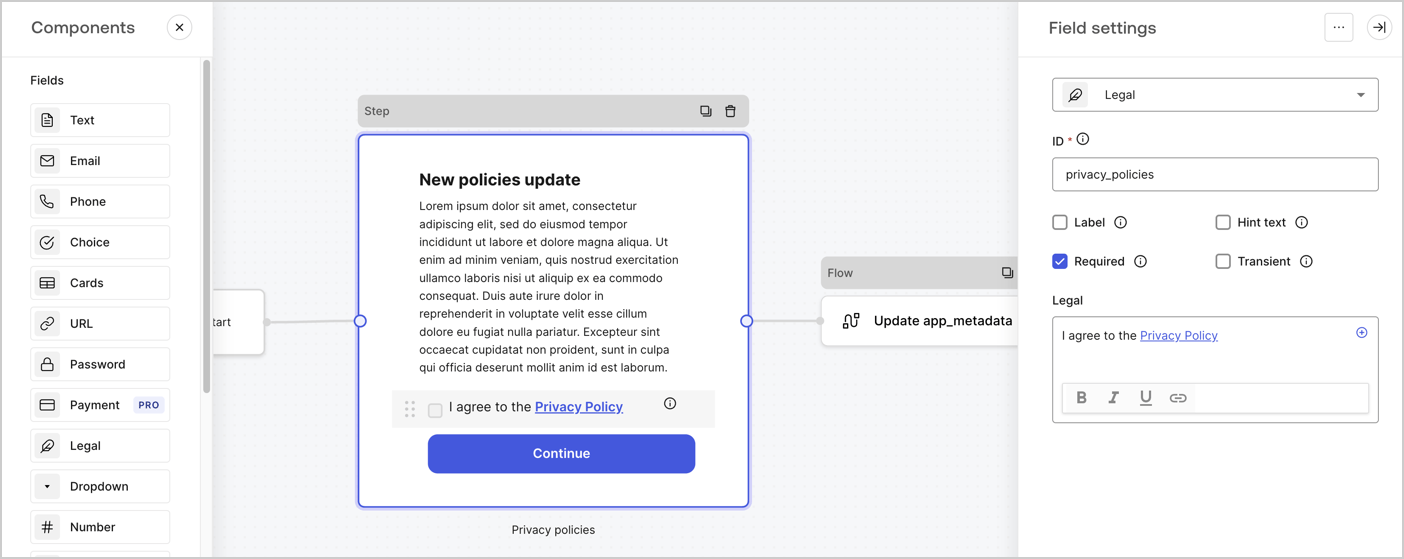
The Step node is the graphical interface visible to users. Add [Fields](/docs/customize/forms/nodes-and-components) to the Step node to collect the new agreement acceptance value by following these steps:

1. Drag a **Rich text** field from the **Components menu** into the **Step** node.

   * **Rich text**: Enter a description of your privacy policies updates.
   * Select **Save**.
2. Drag a **Legal** field into the **Step** node.

   * **ID**: Enter `privacy_policies`.
   * **Required**: Enable the checkbox.
   * **Legal**: Enter `I agree to the Privacy Policy`.
   * Select **Save**.
3. Select **Publish** to save.
<Frame>
  <img src="https://mintcdn.com/docs-staging-feat-docs-5551-enterprise-connect/mYOTb8M9XSN5RkgK/docs/images/cdy7uua7fh8z/59zFFjQjAnjogkc2QGIqqJ/0ad66b1b636544122aa4e65968b76c2c/privacy-policy-step-node.png?fit=max&auto=format&n=mYOTb8M9XSN5RkgK&q=85&s=92985dc464d66dd0ea82f5294d90c590" alt="Dashboard > Actions > Forms > Use case privacy policy step node" data-og-width="1404" width="1404" data-og-height="559" height="559" data-path="docs/images/cdy7uua7fh8z/59zFFjQjAnjogkc2QGIqqJ/0ad66b1b636544122aa4e65968b76c2c/privacy-policy-step-node.png" data-optimize="true" data-opv="3" srcset="https://mintcdn.com/docs-staging-feat-docs-5551-enterprise-connect/mYOTb8M9XSN5RkgK/docs/images/cdy7uua7fh8z/59zFFjQjAnjogkc2QGIqqJ/0ad66b1b636544122aa4e65968b76c2c/privacy-policy-step-node.png?w=280&fit=max&auto=format&n=mYOTb8M9XSN5RkgK&q=85&s=56a800854aee5fc715faa3590cbab120 280w, https://mintcdn.com/docs-staging-feat-docs-5551-enterprise-connect/mYOTb8M9XSN5RkgK/docs/images/cdy7uua7fh8z/59zFFjQjAnjogkc2QGIqqJ/0ad66b1b636544122aa4e65968b76c2c/privacy-policy-step-node.png?w=560&fit=max&auto=format&n=mYOTb8M9XSN5RkgK&q=85&s=6415905432ed081688f862818bfde099 560w, https://mintcdn.com/docs-staging-feat-docs-5551-enterprise-connect/mYOTb8M9XSN5RkgK/docs/images/cdy7uua7fh8z/59zFFjQjAnjogkc2QGIqqJ/0ad66b1b636544122aa4e65968b76c2c/privacy-policy-step-node.png?w=840&fit=max&auto=format&n=mYOTb8M9XSN5RkgK&q=85&s=3dbcfa945a482b7f8a34a4bea8b60d69 840w, https://mintcdn.com/docs-staging-feat-docs-5551-enterprise-connect/mYOTb8M9XSN5RkgK/docs/images/cdy7uua7fh8z/59zFFjQjAnjogkc2QGIqqJ/0ad66b1b636544122aa4e65968b76c2c/privacy-policy-step-node.png?w=1100&fit=max&auto=format&n=mYOTb8M9XSN5RkgK&q=85&s=0bce5c6c4e83b4d00cb0619929714e4a 1100w, https://mintcdn.com/docs-staging-feat-docs-5551-enterprise-connect/mYOTb8M9XSN5RkgK/docs/images/cdy7uua7fh8z/59zFFjQjAnjogkc2QGIqqJ/0ad66b1b636544122aa4e65968b76c2c/privacy-policy-step-node.png?w=1650&fit=max&auto=format&n=mYOTb8M9XSN5RkgK&q=85&s=937539a773f9a5d191fd5888256f8254 1650w, https://mintcdn.com/docs-staging-feat-docs-5551-enterprise-connect/mYOTb8M9XSN5RkgK/docs/images/cdy7uua7fh8z/59zFFjQjAnjogkc2QGIqqJ/0ad66b1b636544122aa4e65968b76c2c/privacy-policy-step-node.png?w=2500&fit=max&auto=format&n=mYOTb8M9XSN5RkgK&q=85&s=2831fc6331a778b38fe155e4ea32b818 2500w" />
</Frame>

### Configure the Flow node

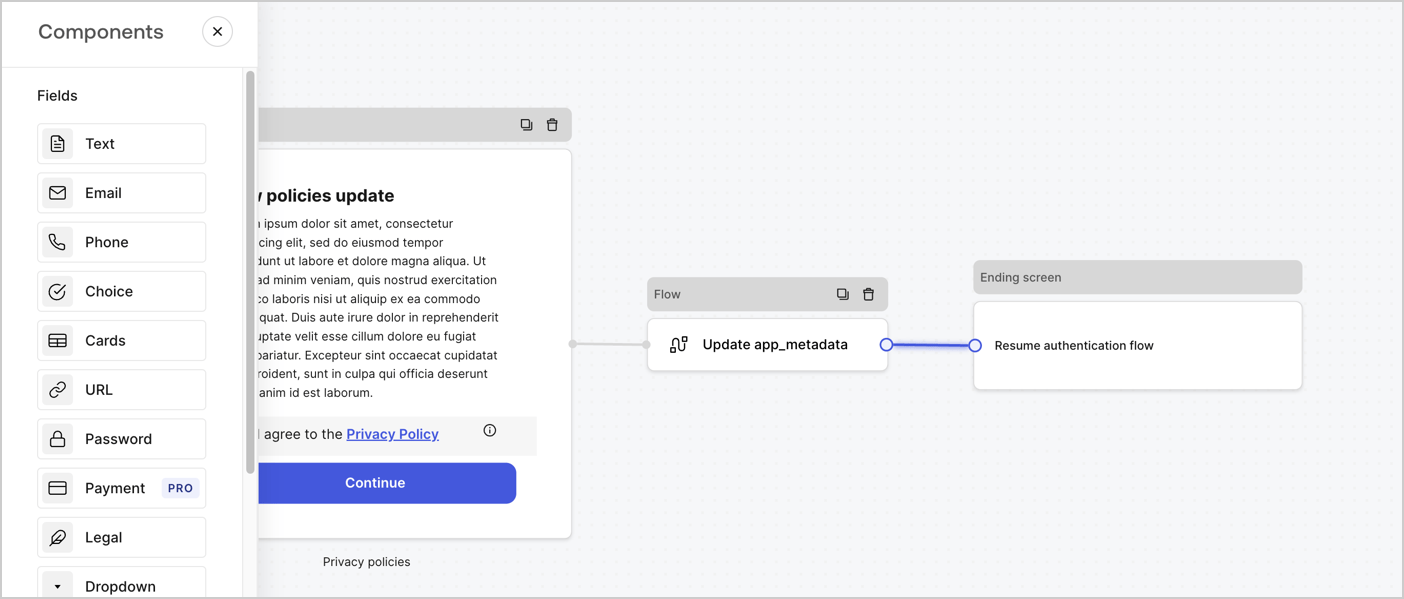
Add a **Flow** node after the **Step** node to update the `app_metadata` and resume the authentication flow by following these steps:

1. Select **Flow** from the bottom of the Form editor.
2. Remove the existing link between the **Step** and **Ending Screen** nodes.
3. Select the new **Flow** > **Click to add a flow** > **Create a new flow.**

   * Enter `Update app_metadata` in the **Name** field.
   * Select **Create**.
   * Select **Save**.
4. Link the **Flow** node to the **Step** and **Ending Screen** nodes as pictured below.
5. Select **Publish** to save.
<Frame>
  <img src="https://mintcdn.com/docs-staging-feat-docs-5551-enterprise-connect/rF2e_ZAMWmmbkboE/docs/images/cdy7uua7fh8z/6YIkzm7SrpM9LW76AXuRzh/353c518fe82bbaa440836da1d83596d6/link-policies.png?fit=max&auto=format&n=rF2e_ZAMWmmbkboE&q=85&s=bb4c85281e63dd605289245596aee8b5" alt="Dashboard > Actions > Forms > Form" data-og-width="1404" width="1404" data-og-height="599" height="599" data-path="docs/images/cdy7uua7fh8z/6YIkzm7SrpM9LW76AXuRzh/353c518fe82bbaa440836da1d83596d6/link-policies.png" data-optimize="true" data-opv="3" srcset="https://mintcdn.com/docs-staging-feat-docs-5551-enterprise-connect/rF2e_ZAMWmmbkboE/docs/images/cdy7uua7fh8z/6YIkzm7SrpM9LW76AXuRzh/353c518fe82bbaa440836da1d83596d6/link-policies.png?w=280&fit=max&auto=format&n=rF2e_ZAMWmmbkboE&q=85&s=daceb96e847d6341c1dc9da2716a542b 280w, https://mintcdn.com/docs-staging-feat-docs-5551-enterprise-connect/rF2e_ZAMWmmbkboE/docs/images/cdy7uua7fh8z/6YIkzm7SrpM9LW76AXuRzh/353c518fe82bbaa440836da1d83596d6/link-policies.png?w=560&fit=max&auto=format&n=rF2e_ZAMWmmbkboE&q=85&s=e84c2b1c659293120462a224edc6aabb 560w, https://mintcdn.com/docs-staging-feat-docs-5551-enterprise-connect/rF2e_ZAMWmmbkboE/docs/images/cdy7uua7fh8z/6YIkzm7SrpM9LW76AXuRzh/353c518fe82bbaa440836da1d83596d6/link-policies.png?w=840&fit=max&auto=format&n=rF2e_ZAMWmmbkboE&q=85&s=2764e912f3a9152ce33d3da602c6b116 840w, https://mintcdn.com/docs-staging-feat-docs-5551-enterprise-connect/rF2e_ZAMWmmbkboE/docs/images/cdy7uua7fh8z/6YIkzm7SrpM9LW76AXuRzh/353c518fe82bbaa440836da1d83596d6/link-policies.png?w=1100&fit=max&auto=format&n=rF2e_ZAMWmmbkboE&q=85&s=67d5db0f7e11ba3f1c10a8850a1ba369 1100w, https://mintcdn.com/docs-staging-feat-docs-5551-enterprise-connect/rF2e_ZAMWmmbkboE/docs/images/cdy7uua7fh8z/6YIkzm7SrpM9LW76AXuRzh/353c518fe82bbaa440836da1d83596d6/link-policies.png?w=1650&fit=max&auto=format&n=rF2e_ZAMWmmbkboE&q=85&s=8ab46cbddea82d7ed7e8422cc59df83e 1650w, https://mintcdn.com/docs-staging-feat-docs-5551-enterprise-connect/rF2e_ZAMWmmbkboE/docs/images/cdy7uua7fh8z/6YIkzm7SrpM9LW76AXuRzh/353c518fe82bbaa440836da1d83596d6/link-policies.png?w=2500&fit=max&auto=format&n=rF2e_ZAMWmmbkboE&q=85&s=e5f655996ac781a7199f44ed38135589 2500w" />
</Frame>

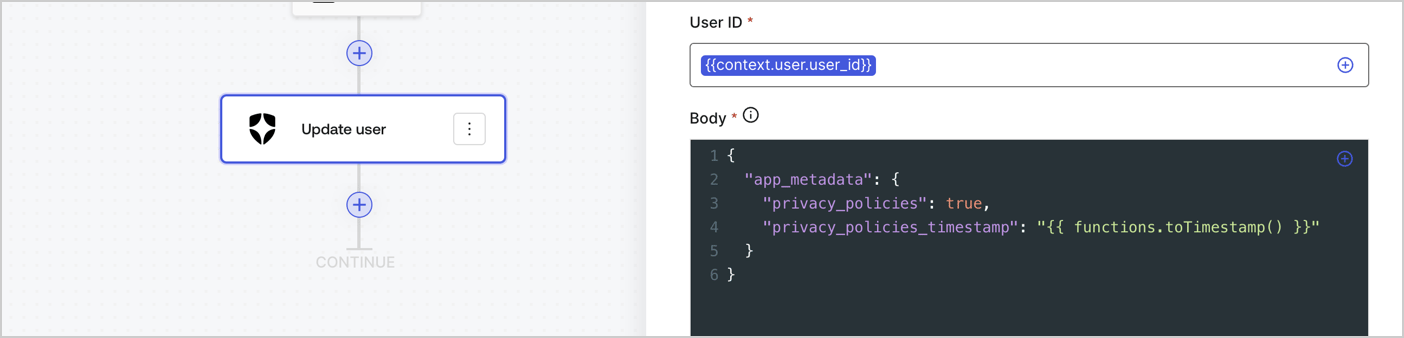
Add an Auth0 Update user action to the flow by following these steps:

1. Select the **Flow** **Update app\_metadata** > **Edit flow** to open the Flow editor in a new tab.
2. Below the StartAction, select the **+** icon to add an **Update user** action. Complete the fields below, then select **Save** to continue.

   * **Connection**: Select from the dropdown the Vault connection to your M2M application.

   * **User ID**: Enter `{{context.user.user_id}}`.

   * **Body**: Copy and paste the following code to update the app\_metadata with the privacy\_policies and privacy\_policies\_timestamp properties.

     ```text lines theme={null}
     {
       "app_metadata": {
         "privacy_policies": true,
         "privacy_policies_timestamp": "{{ functions.toTimestamp() }}"
       }
     }
     ```

   * Select **Save**.
3. Select **Publish** to save.
<Frame>
  <img src="https://mintcdn.com/docs-staging-feat-docs-5551-enterprise-connect/Y6-Mhwbqs2aQNd5I/docs/images/cdy7uua7fh8z/CvMNIwWrOUwaFW4X3G28p/1fb70ae57a20749d9ffaaba8dc0b7e26/update-user-privacy.png?fit=max&auto=format&n=Y6-Mhwbqs2aQNd5I&q=85&s=7db0bd7f7fef7f4074b04100e91ceaa6" alt="Dashboard > Actions > Forms > User case privacy policy code" data-og-width="1404" width="1404" data-og-height="338" height="338" data-path="docs/images/cdy7uua7fh8z/CvMNIwWrOUwaFW4X3G28p/1fb70ae57a20749d9ffaaba8dc0b7e26/update-user-privacy.png" data-optimize="true" data-opv="3" srcset="https://mintcdn.com/docs-staging-feat-docs-5551-enterprise-connect/Y6-Mhwbqs2aQNd5I/docs/images/cdy7uua7fh8z/CvMNIwWrOUwaFW4X3G28p/1fb70ae57a20749d9ffaaba8dc0b7e26/update-user-privacy.png?w=280&fit=max&auto=format&n=Y6-Mhwbqs2aQNd5I&q=85&s=9cdb1fbafdbbdde78dbfd1ca53ef53b0 280w, https://mintcdn.com/docs-staging-feat-docs-5551-enterprise-connect/Y6-Mhwbqs2aQNd5I/docs/images/cdy7uua7fh8z/CvMNIwWrOUwaFW4X3G28p/1fb70ae57a20749d9ffaaba8dc0b7e26/update-user-privacy.png?w=560&fit=max&auto=format&n=Y6-Mhwbqs2aQNd5I&q=85&s=e1ca3ae03e85204bee5229ab35a2f275 560w, https://mintcdn.com/docs-staging-feat-docs-5551-enterprise-connect/Y6-Mhwbqs2aQNd5I/docs/images/cdy7uua7fh8z/CvMNIwWrOUwaFW4X3G28p/1fb70ae57a20749d9ffaaba8dc0b7e26/update-user-privacy.png?w=840&fit=max&auto=format&n=Y6-Mhwbqs2aQNd5I&q=85&s=5f2a9d166ca477b2c4cb4f71a2fd3572 840w, https://mintcdn.com/docs-staging-feat-docs-5551-enterprise-connect/Y6-Mhwbqs2aQNd5I/docs/images/cdy7uua7fh8z/CvMNIwWrOUwaFW4X3G28p/1fb70ae57a20749d9ffaaba8dc0b7e26/update-user-privacy.png?w=1100&fit=max&auto=format&n=Y6-Mhwbqs2aQNd5I&q=85&s=989f166c2e338a4b717db91f204c9fa7 1100w, https://mintcdn.com/docs-staging-feat-docs-5551-enterprise-connect/Y6-Mhwbqs2aQNd5I/docs/images/cdy7uua7fh8z/CvMNIwWrOUwaFW4X3G28p/1fb70ae57a20749d9ffaaba8dc0b7e26/update-user-privacy.png?w=1650&fit=max&auto=format&n=Y6-Mhwbqs2aQNd5I&q=85&s=768ffd1639d20d6bf51104ee65f4783d 1650w, https://mintcdn.com/docs-staging-feat-docs-5551-enterprise-connect/Y6-Mhwbqs2aQNd5I/docs/images/cdy7uua7fh8z/CvMNIwWrOUwaFW4X3G28p/1fb70ae57a20749d9ffaaba8dc0b7e26/update-user-privacy.png?w=2500&fit=max&auto=format&n=Y6-Mhwbqs2aQNd5I&q=85&s=e63eb0c9fddfeddbf026ebe5ea4809c6 2500w" />
</Frame>

<Callout icon="file-lines" color="#0EA5E9" iconType="regular">
  The flow **Update app\_metadata** adds a `privacy_policies true` value to the app`_metadata` object and also generates a timestamp with a [helper function.](/docs/customize/forms/variables)
</Callout>

## Retrieve the form render code

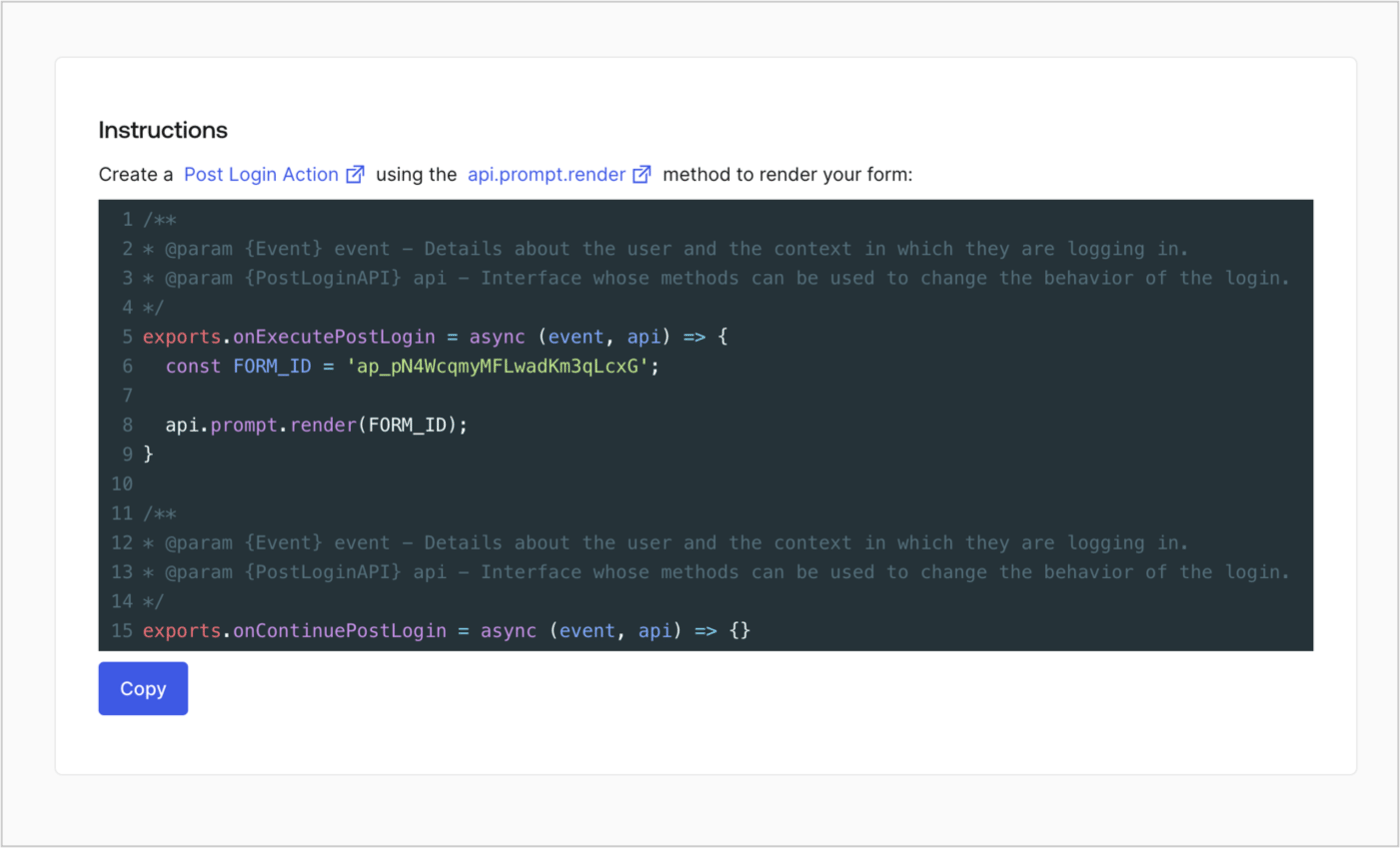
Retrieve your form render code to visually render the form with a custom Post Login Action by following these steps:

* From the Form editor, select **`<> Render`**.
* Select **Copy**.
<Frame>
  <img src="https://mintcdn.com/docs-staging-feat-docs-5551-enterprise-connect/TXIqZlkIsaItNUBm/docs/images/cdy7uua7fh8z/2EIUzc539sq9lwoTKbjoJv/496a864c0fc44a782c9cadca119dbfb0/embed.png?fit=max&auto=format&n=TXIqZlkIsaItNUBm&q=85&s=49f6540cba3cdc6a435f678ea25f8bc6" alt="Dashboard > Actions > Forms > Form > Embed" data-og-width="1400" width="1400" data-og-height="848" height="848" data-path="docs/images/cdy7uua7fh8z/2EIUzc539sq9lwoTKbjoJv/496a864c0fc44a782c9cadca119dbfb0/embed.png" data-optimize="true" data-opv="3" srcset="https://mintcdn.com/docs-staging-feat-docs-5551-enterprise-connect/TXIqZlkIsaItNUBm/docs/images/cdy7uua7fh8z/2EIUzc539sq9lwoTKbjoJv/496a864c0fc44a782c9cadca119dbfb0/embed.png?w=280&fit=max&auto=format&n=TXIqZlkIsaItNUBm&q=85&s=7b5916bc92f44cbe46d35e83f9db1ff0 280w, https://mintcdn.com/docs-staging-feat-docs-5551-enterprise-connect/TXIqZlkIsaItNUBm/docs/images/cdy7uua7fh8z/2EIUzc539sq9lwoTKbjoJv/496a864c0fc44a782c9cadca119dbfb0/embed.png?w=560&fit=max&auto=format&n=TXIqZlkIsaItNUBm&q=85&s=94ad52675ba729466711525f6e1638d8 560w, https://mintcdn.com/docs-staging-feat-docs-5551-enterprise-connect/TXIqZlkIsaItNUBm/docs/images/cdy7uua7fh8z/2EIUzc539sq9lwoTKbjoJv/496a864c0fc44a782c9cadca119dbfb0/embed.png?w=840&fit=max&auto=format&n=TXIqZlkIsaItNUBm&q=85&s=f30fd7d0e3c2175a6ce7e8471b2a6d9f 840w, https://mintcdn.com/docs-staging-feat-docs-5551-enterprise-connect/TXIqZlkIsaItNUBm/docs/images/cdy7uua7fh8z/2EIUzc539sq9lwoTKbjoJv/496a864c0fc44a782c9cadca119dbfb0/embed.png?w=1100&fit=max&auto=format&n=TXIqZlkIsaItNUBm&q=85&s=1e3651033c8de1bb8906dcd59c1946bb 1100w, https://mintcdn.com/docs-staging-feat-docs-5551-enterprise-connect/TXIqZlkIsaItNUBm/docs/images/cdy7uua7fh8z/2EIUzc539sq9lwoTKbjoJv/496a864c0fc44a782c9cadca119dbfb0/embed.png?w=1650&fit=max&auto=format&n=TXIqZlkIsaItNUBm&q=85&s=6a7601e6d1bb8c46424c71887f09da95 1650w, https://mintcdn.com/docs-staging-feat-docs-5551-enterprise-connect/TXIqZlkIsaItNUBm/docs/images/cdy7uua7fh8z/2EIUzc539sq9lwoTKbjoJv/496a864c0fc44a782c9cadca119dbfb0/embed.png?w=2500&fit=max&auto=format&n=TXIqZlkIsaItNUBm&q=85&s=a9689c63398b2f5e6c91f7e4782444b5 2500w" />
</Frame>

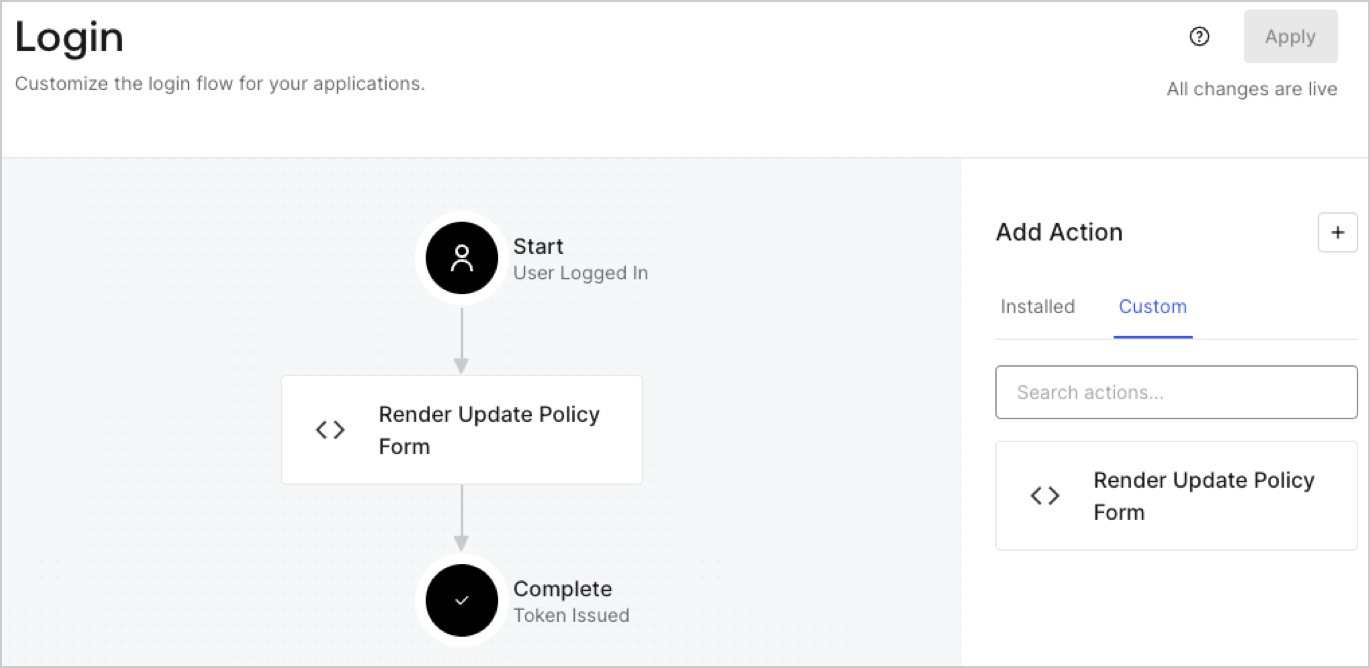
## Create a Post Login Action

Create a post-login Action to render your form by following these steps:

1. Navigate to **Auth0 Dashboard > Actions > Flows > Login.**
2. Select the **+** icon and Select **Build from scratch**:

   * **Name**: Enter `Render Update Policy Form`.
   * **Trigger**: Select `Login / Post Login`.
   * **Runtime**: Select the recommended version.
3. Select **Create**.

To configure the post-login Action:

1. Delete the existing code from the Code editor.
2. Paste the form render code into the Code editor.
3. Edit the code to define the conditional logic that will render the form.

   ```javascript lines theme={null}
   /**
   * @param {Event} event - Details about the user and the context in which they are logging in.
   * @param {PostLoginAPI} api - Interface whose methods can be used to change the behavior of the login.
   */
   exports.onExecutePostLogin = async (event, api) => {
     const FORM_ID = 'REPLACE_WITH_YOUR_FORM_ID';

     if (event.user.app_metadata.privacy_policies !== true) {
       api.prompt.render(FORM_ID);
     }
   }

   exports.onContinuePostLogin = async (event, api) => { }
   ```

   <Callout icon="file-lines" color="#0EA5E9" iconType="regular">
     The example code above will render the form when a user is missing the app metadata `privacy_policies` property.
   </Callout>
4. Select **Deploy.**
5. Drag and Drop the **Render Update Policy Form** Action to the **Login** flow.
   <Frame>
     <img src="https://mintcdn.com/docs-staging-feat-docs-5551-enterprise-connect/UNCubpLcK3lj35bn/docs/images/cdy7uua7fh8z/5TOwDgevZsBqd7yZynUYWU/41ca909dc3007aed4f40ff794a05efa5/postlogin.png?fit=max&auto=format&n=UNCubpLcK3lj35bn&q=85&s=b1118d176e044b7a35de82acf4649c26" alt="Dashboard > Forms > Use Case > Render update policy form login action" data-og-width="1370" width="1370" data-og-height="668" height="668" data-path="docs/images/cdy7uua7fh8z/5TOwDgevZsBqd7yZynUYWU/41ca909dc3007aed4f40ff794a05efa5/postlogin.png" data-optimize="true" data-opv="3" srcset="https://mintcdn.com/docs-staging-feat-docs-5551-enterprise-connect/UNCubpLcK3lj35bn/docs/images/cdy7uua7fh8z/5TOwDgevZsBqd7yZynUYWU/41ca909dc3007aed4f40ff794a05efa5/postlogin.png?w=280&fit=max&auto=format&n=UNCubpLcK3lj35bn&q=85&s=5f136d58c1669a6b27666a5061515180 280w, https://mintcdn.com/docs-staging-feat-docs-5551-enterprise-connect/UNCubpLcK3lj35bn/docs/images/cdy7uua7fh8z/5TOwDgevZsBqd7yZynUYWU/41ca909dc3007aed4f40ff794a05efa5/postlogin.png?w=560&fit=max&auto=format&n=UNCubpLcK3lj35bn&q=85&s=7e2e11f9f8db159e399879236ad0beac 560w, https://mintcdn.com/docs-staging-feat-docs-5551-enterprise-connect/UNCubpLcK3lj35bn/docs/images/cdy7uua7fh8z/5TOwDgevZsBqd7yZynUYWU/41ca909dc3007aed4f40ff794a05efa5/postlogin.png?w=840&fit=max&auto=format&n=UNCubpLcK3lj35bn&q=85&s=ce1383e889f46f362809861acce49edc 840w, https://mintcdn.com/docs-staging-feat-docs-5551-enterprise-connect/UNCubpLcK3lj35bn/docs/images/cdy7uua7fh8z/5TOwDgevZsBqd7yZynUYWU/41ca909dc3007aed4f40ff794a05efa5/postlogin.png?w=1100&fit=max&auto=format&n=UNCubpLcK3lj35bn&q=85&s=c2e5123021ff7871ccfdcca4e02960aa 1100w, https://mintcdn.com/docs-staging-feat-docs-5551-enterprise-connect/UNCubpLcK3lj35bn/docs/images/cdy7uua7fh8z/5TOwDgevZsBqd7yZynUYWU/41ca909dc3007aed4f40ff794a05efa5/postlogin.png?w=1650&fit=max&auto=format&n=UNCubpLcK3lj35bn&q=85&s=77baa55199cd06689fb929173e59e009 1650w, https://mintcdn.com/docs-staging-feat-docs-5551-enterprise-connect/UNCubpLcK3lj35bn/docs/images/cdy7uua7fh8z/5TOwDgevZsBqd7yZynUYWU/41ca909dc3007aed4f40ff794a05efa5/postlogin.png?w=2500&fit=max&auto=format&n=UNCubpLcK3lj35bn&q=85&s=c29ca6567358d82214cc285657d3fa45 2500w" />
   </Frame>
6. Select **Apply.**

### Test implementation

Test the implementation by following these steps:

1. Log in with an existing user whose app`_metadata` attribute `privacy_policies` does not have a value.
2. The post-login Action in the Login flow will render the form and prompt for acceptance.
3. Select **Auth0 Dashboard > User Management > Users,** locate the user and verify that the `app_metadata` attribute `privacy_policies` contains a `true` value and a timestamp.
