> ## Documentation Index
> Fetch the complete documentation index at: https://docs-staging-feat-docs-5551-enterprise-connect.mintlify.site/llms.txt
> Use this file to discover all available pages before exploring further.

> Learn how to add custom messages and translations to a Form so each step displays locale-specific copy that matches the language settings of the user.

# Custom Messages and Translation

You can  customize Form messages to provide your users with a unique Form experience. In addition, you can translate form components, errors, and other custom messages into other languages for a localized experience.

## Messages

Through the Form editor, you can customize error messages and create other custom messages for your users.

### Error messages

You can create custom error messages to replace the default error messages of your forms.

To create custom error messages, follow the steps below:

1. On the Auth0 Dashboard, navigate to **Actions > Forms**.
2. Select **Messages** from the left menu of the Form editor.
3. Select the **Errors** tab\*\*.\*\*
4. Enter your custom error messages in the appropriate fields to replace the default messages.
5. Select **Publish** to save.

### Custom messages

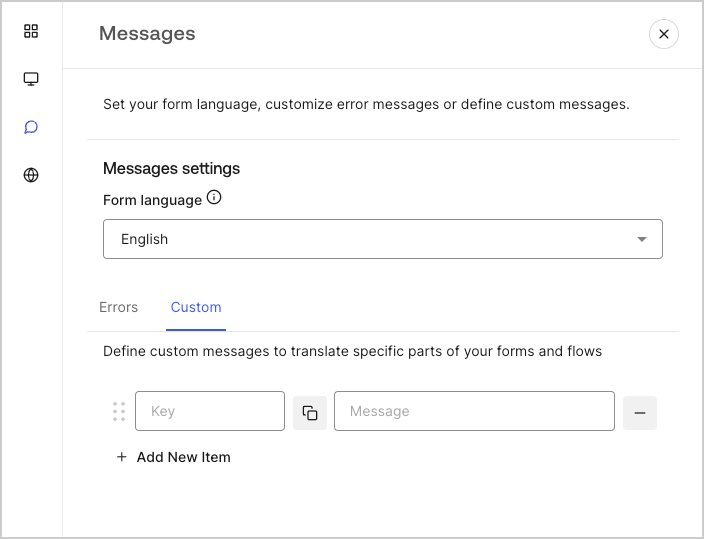
You can create custom messages to add to the default messages for an even further personalized Form experience. For example, you can add a custom message that displays to users when an action returns an error in a flow.

#### Create custom messages

To create custom messages, follow the steps below:

1. From the left menu of the Form editor, select **Messages**.
2. Select the **Custom** tab.Then, select **Add New Item**.
3. To the left, add a unique key for your message\*\*.\*\* Then\*\*, enter\*\* your custom message in the field to the right.
4. Select **Publish** to save.
<Frame>
  <img src="https://mintcdn.com/docs-staging-feat-docs-5551-enterprise-connect/TXIqZlkIsaItNUBm/docs/images/cdy7uua7fh8z/1upBOwWqntPPQF8fqGeN6T/a65674d05c823c5fbe703265558693e4/custom-message.png?fit=max&auto=format&n=TXIqZlkIsaItNUBm&q=85&s=237c029e81a4adbc4a20527990d1f23f" alt="Dashboard > Forms > Custom messages and translations > Custom message" data-og-width="704" width="704" data-og-height="539" height="539" data-path="docs/images/cdy7uua7fh8z/1upBOwWqntPPQF8fqGeN6T/a65674d05c823c5fbe703265558693e4/custom-message.png" data-optimize="true" data-opv="3" srcset="https://mintcdn.com/docs-staging-feat-docs-5551-enterprise-connect/TXIqZlkIsaItNUBm/docs/images/cdy7uua7fh8z/1upBOwWqntPPQF8fqGeN6T/a65674d05c823c5fbe703265558693e4/custom-message.png?w=280&fit=max&auto=format&n=TXIqZlkIsaItNUBm&q=85&s=52d3e585c187d0cc90f698a002194712 280w, https://mintcdn.com/docs-staging-feat-docs-5551-enterprise-connect/TXIqZlkIsaItNUBm/docs/images/cdy7uua7fh8z/1upBOwWqntPPQF8fqGeN6T/a65674d05c823c5fbe703265558693e4/custom-message.png?w=560&fit=max&auto=format&n=TXIqZlkIsaItNUBm&q=85&s=dd5298196785035b5167df2127bfcfd5 560w, https://mintcdn.com/docs-staging-feat-docs-5551-enterprise-connect/TXIqZlkIsaItNUBm/docs/images/cdy7uua7fh8z/1upBOwWqntPPQF8fqGeN6T/a65674d05c823c5fbe703265558693e4/custom-message.png?w=840&fit=max&auto=format&n=TXIqZlkIsaItNUBm&q=85&s=eecc15db864f758aa2c2a1a3b34902c6 840w, https://mintcdn.com/docs-staging-feat-docs-5551-enterprise-connect/TXIqZlkIsaItNUBm/docs/images/cdy7uua7fh8z/1upBOwWqntPPQF8fqGeN6T/a65674d05c823c5fbe703265558693e4/custom-message.png?w=1100&fit=max&auto=format&n=TXIqZlkIsaItNUBm&q=85&s=f55a9a110ce5f8183925f61e100d5bb5 1100w, https://mintcdn.com/docs-staging-feat-docs-5551-enterprise-connect/TXIqZlkIsaItNUBm/docs/images/cdy7uua7fh8z/1upBOwWqntPPQF8fqGeN6T/a65674d05c823c5fbe703265558693e4/custom-message.png?w=1650&fit=max&auto=format&n=TXIqZlkIsaItNUBm&q=85&s=898afa29534982af7e68a8e8f060edc0 1650w, https://mintcdn.com/docs-staging-feat-docs-5551-enterprise-connect/TXIqZlkIsaItNUBm/docs/images/cdy7uua7fh8z/1upBOwWqntPPQF8fqGeN6T/a65674d05c823c5fbe703265558693e4/custom-message.png?w=2500&fit=max&auto=format&n=TXIqZlkIsaItNUBm&q=85&s=46e8bc945e5f3ef16f9b77cb9fd22dd8 2500w" />
</Frame>

#### Add custom messages to your forms

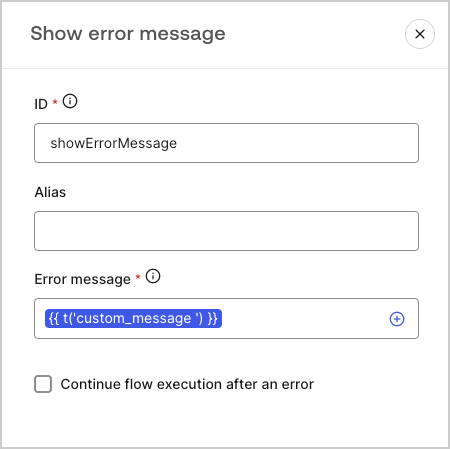
To reference your custom messages in your forms, use the function `{{t('custom_unique_key')}}` with the custom message unique key.
<Frame>
  <img src="https://mintcdn.com/docs-staging-feat-docs-5551-enterprise-connect/YP4RV0jqM0UU3Ulh/docs/images/cdy7uua7fh8z/45p4V7w5gw7DQZyJ08ECSH/d040720d9aa19f6e97e21defcd428e55/translation-function.png?fit=max&auto=format&n=YP4RV0jqM0UU3Ulh&q=85&s=a229c8987f7e88ec11a2c1c77a6fde36" alt="Dashboard > Forms > Custom messages and translations > Translation function" data-og-width="450" width="450" data-og-height="449" height="449" data-path="docs/images/cdy7uua7fh8z/45p4V7w5gw7DQZyJ08ECSH/d040720d9aa19f6e97e21defcd428e55/translation-function.png" data-optimize="true" data-opv="3" srcset="https://mintcdn.com/docs-staging-feat-docs-5551-enterprise-connect/YP4RV0jqM0UU3Ulh/docs/images/cdy7uua7fh8z/45p4V7w5gw7DQZyJ08ECSH/d040720d9aa19f6e97e21defcd428e55/translation-function.png?w=280&fit=max&auto=format&n=YP4RV0jqM0UU3Ulh&q=85&s=e70581295a5960f8f8c1c291ac5f3d83 280w, https://mintcdn.com/docs-staging-feat-docs-5551-enterprise-connect/YP4RV0jqM0UU3Ulh/docs/images/cdy7uua7fh8z/45p4V7w5gw7DQZyJ08ECSH/d040720d9aa19f6e97e21defcd428e55/translation-function.png?w=560&fit=max&auto=format&n=YP4RV0jqM0UU3Ulh&q=85&s=ed67ad96134d353ae09b5a359bf80c03 560w, https://mintcdn.com/docs-staging-feat-docs-5551-enterprise-connect/YP4RV0jqM0UU3Ulh/docs/images/cdy7uua7fh8z/45p4V7w5gw7DQZyJ08ECSH/d040720d9aa19f6e97e21defcd428e55/translation-function.png?w=840&fit=max&auto=format&n=YP4RV0jqM0UU3Ulh&q=85&s=fd2a518d30a18aa175713ae3c213d0ee 840w, https://mintcdn.com/docs-staging-feat-docs-5551-enterprise-connect/YP4RV0jqM0UU3Ulh/docs/images/cdy7uua7fh8z/45p4V7w5gw7DQZyJ08ECSH/d040720d9aa19f6e97e21defcd428e55/translation-function.png?w=1100&fit=max&auto=format&n=YP4RV0jqM0UU3Ulh&q=85&s=c97493954271bec4676fa7dcfd90c310 1100w, https://mintcdn.com/docs-staging-feat-docs-5551-enterprise-connect/YP4RV0jqM0UU3Ulh/docs/images/cdy7uua7fh8z/45p4V7w5gw7DQZyJ08ECSH/d040720d9aa19f6e97e21defcd428e55/translation-function.png?w=1650&fit=max&auto=format&n=YP4RV0jqM0UU3Ulh&q=85&s=b45b97668619358e4d3107b4f5c9a751 1650w, https://mintcdn.com/docs-staging-feat-docs-5551-enterprise-connect/YP4RV0jqM0UU3Ulh/docs/images/cdy7uua7fh8z/45p4V7w5gw7DQZyJ08ECSH/d040720d9aa19f6e97e21defcd428e55/translation-function.png?w=2500&fit=max&auto=format&n=YP4RV0jqM0UU3Ulh&q=85&s=c019db9697dcd9a81d0504d347ecc7ea 2500w" />
</Frame>

## Translations

You can use the Translations feature to create an international user experience of your forms. This feature leverages a user’s browser language to determine the appropriate language for your forms.
By default, translations for some standard error messages are provided in Spanish. However, to promote a quality user experience, you can define the translations for your form components, errors, and custom messages in the language of your choice.

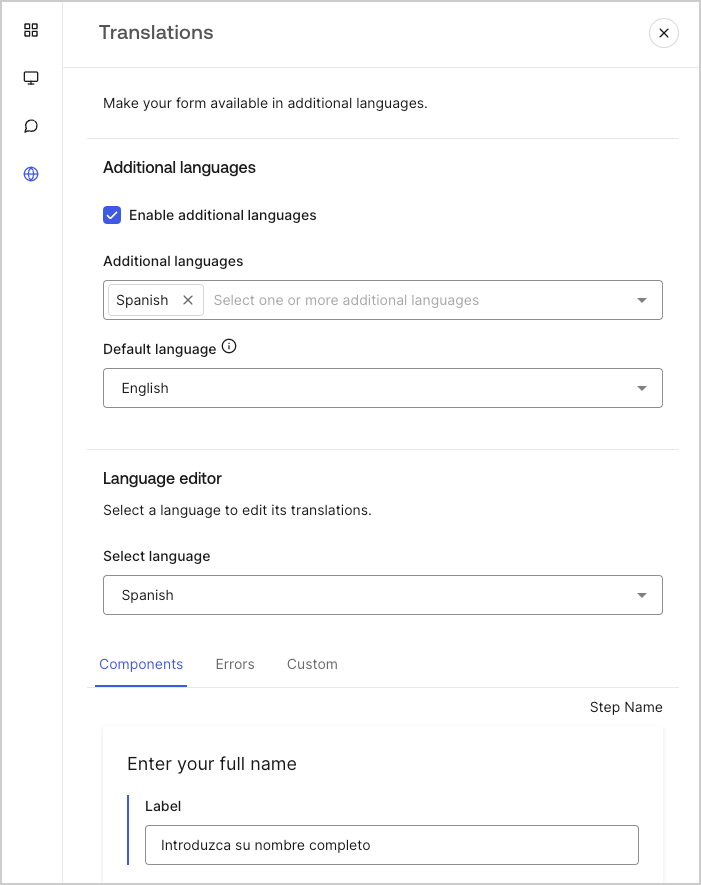
To enable translations, follow the steps below:

1. On the Auth0 Dashboard, navigate to **Actions > Forms**.
2. Select **Translations** from the left menu of the Form editor.
3. Check **Enable additional languages**.
4. Select the desired languages from the **Additional languages** dropdown menu.

### Translate messages

With the language editor, you can define translations for your form components, errors, and other custom messages.

To define your translations, follow the steps below:

1. Select the desired language from theSelect language dropdown menu.
2. Select one of the following tabs to begin defining your translations:

   1. **Components**
   2. **Errors**
   3. **Custom**
3. For each available field, provide your translations as needed.
4. Select **Publish** to save.
<Frame>
  <img src="https://mintcdn.com/docs-staging-feat-docs-5551-enterprise-connect/UNCubpLcK3lj35bn/docs/images/cdy7uua7fh8z/5HY9FA6HZct2XNv5K4pCHY/c5977a7825e15285c3d77c2ca1e299a8/translation-message.png?fit=max&auto=format&n=UNCubpLcK3lj35bn&q=85&s=3c9b1136ccbc7cc795196a199b9c28eb" alt="Dashboard > Forms > Custom messages and translations > Translation message" data-og-width="701" width="701" data-og-height="885" height="885" data-path="docs/images/cdy7uua7fh8z/5HY9FA6HZct2XNv5K4pCHY/c5977a7825e15285c3d77c2ca1e299a8/translation-message.png" data-optimize="true" data-opv="3" srcset="https://mintcdn.com/docs-staging-feat-docs-5551-enterprise-connect/UNCubpLcK3lj35bn/docs/images/cdy7uua7fh8z/5HY9FA6HZct2XNv5K4pCHY/c5977a7825e15285c3d77c2ca1e299a8/translation-message.png?w=280&fit=max&auto=format&n=UNCubpLcK3lj35bn&q=85&s=0a187d7844541b29a41331ec26ce2650 280w, https://mintcdn.com/docs-staging-feat-docs-5551-enterprise-connect/UNCubpLcK3lj35bn/docs/images/cdy7uua7fh8z/5HY9FA6HZct2XNv5K4pCHY/c5977a7825e15285c3d77c2ca1e299a8/translation-message.png?w=560&fit=max&auto=format&n=UNCubpLcK3lj35bn&q=85&s=a7656ab269b4221a571f6da15faee0b9 560w, https://mintcdn.com/docs-staging-feat-docs-5551-enterprise-connect/UNCubpLcK3lj35bn/docs/images/cdy7uua7fh8z/5HY9FA6HZct2XNv5K4pCHY/c5977a7825e15285c3d77c2ca1e299a8/translation-message.png?w=840&fit=max&auto=format&n=UNCubpLcK3lj35bn&q=85&s=c0d83352c60c6b8620e9c87545907e0b 840w, https://mintcdn.com/docs-staging-feat-docs-5551-enterprise-connect/UNCubpLcK3lj35bn/docs/images/cdy7uua7fh8z/5HY9FA6HZct2XNv5K4pCHY/c5977a7825e15285c3d77c2ca1e299a8/translation-message.png?w=1100&fit=max&auto=format&n=UNCubpLcK3lj35bn&q=85&s=fea01fc51df348dd42b532601f17b07e 1100w, https://mintcdn.com/docs-staging-feat-docs-5551-enterprise-connect/UNCubpLcK3lj35bn/docs/images/cdy7uua7fh8z/5HY9FA6HZct2XNv5K4pCHY/c5977a7825e15285c3d77c2ca1e299a8/translation-message.png?w=1650&fit=max&auto=format&n=UNCubpLcK3lj35bn&q=85&s=5fa42eaed6b16dd998e5b15d05e827a9 1650w, https://mintcdn.com/docs-staging-feat-docs-5551-enterprise-connect/UNCubpLcK3lj35bn/docs/images/cdy7uua7fh8z/5HY9FA6HZct2XNv5K4pCHY/c5977a7825e15285c3d77c2ca1e299a8/translation-message.png?w=2500&fit=max&auto=format&n=UNCubpLcK3lj35bn&q=85&s=1eb570c91559684df409f3669a0cae41 2500w" />
</Frame>
