> ## Documentation Index
> Fetch the complete documentation index at: https://docs-staging-feat-docs-5551-enterprise-connect.mintlify.site/llms.txt
> Use this file to discover all available pages before exploring further.

# Coffre-fort

> Décrit comment utiliser le coffre-fort de formulaires pour les actions.

Le coffre-fort vous permet de stocker de manière sécurisée des secrets ou des paramètres courants (par exemple : clés API, jetons d’accès, jetons d’actualisation) pour authentifier les demandes auprès de services externes ou des intégrations en tant que connexions de coffre-fort.

<Callout icon="file-lines" color="#0EA5E9" iconType="regular">
  * Certaines connexions exigent que l’utilisateur fournisse des informations d’identification (par exemple, dans le cas d’une connexion Auth0 avec une application machine-machine (M-M), un jeton d’accès est généré avec un délai d’expiration et un jeton d’actualisation). La connexion stocke les deux jetons et génère un nouveau jeton d’accès avant son expiration.
  * Certains services externes requièrent des permissions pour générer des identifiants d’API. Si vous modifiez les permissions, mettez à jour la connexion à ces services pour éviter les problèmes de connexion.
  * Une fois la connexion ajoutée, vous pouvez l’utiliser dans vos flux. Toute mise à jour d’une connexion existante se propage automatiquement.
</Callout>

## Créer et modifier des connexions au coffre-fort

Créez et modifiez des connexions au coffre-fort depuis la page correspondante ou l’éditeur de flux lorsqu’une action nécessite des identifiants.

### Créer des connexions au coffre-fort depuis la page correspondante

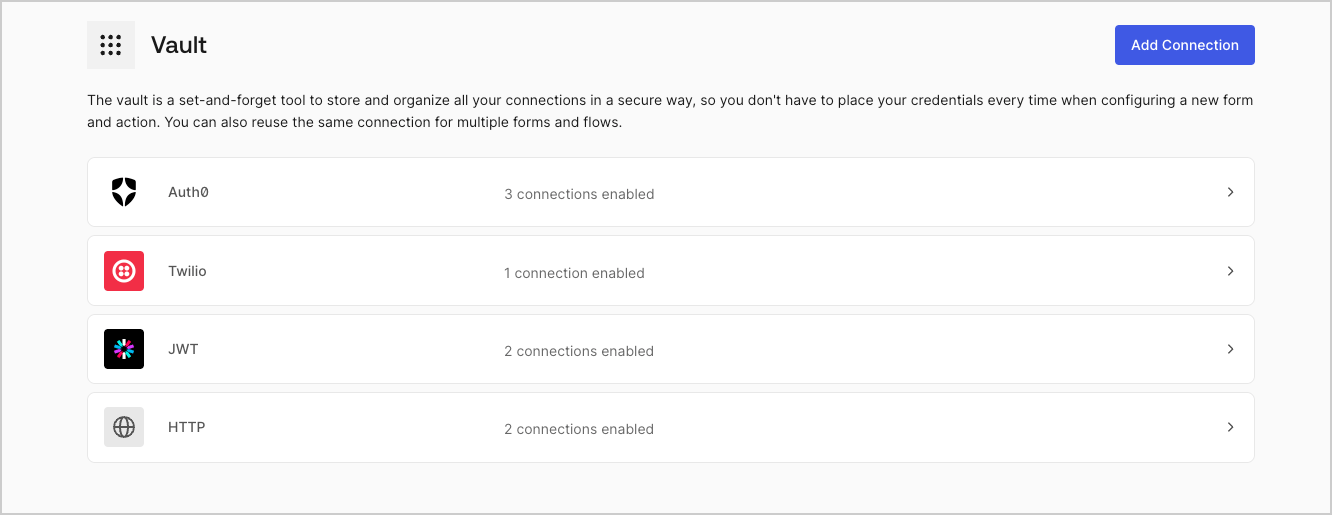
Ajoutez une connexion au coffre-fort depuis la page Coffre-fort en procédant comme suit :

1. Ouvrez l’éditeur de formulaires en sélectionnant **Auth0 Dashboard > Actions > Forms (Formulaires).**

2. En haut à gauche de l’écran, sélectionnez **{"{tenantName}"} > Vault (Coffre-fort)** pour ouvrir la page Vault.
   <Frame>
     <img src="https://mintcdn.com/docs-staging-feat-docs-5551-enterprise-connect/d-lViq_PfNqcGYMU/docs/images/fr-ca/cdy7uua7fh8z/1sPNPKO6nuEDCuiYGRWSur/d85dc616170eaf2d7d5f321750863ccf/vault-connections-example.png?fit=max&auto=format&n=d-lViq_PfNqcGYMU&q=85&s=39b4d65b10e8009c18c390ad9c0bade5" alt="Dashboard > Forms > Vault" data-og-width="1332" width="1332" data-og-height="515" height="515" data-path="docs/images/fr-ca/cdy7uua7fh8z/1sPNPKO6nuEDCuiYGRWSur/d85dc616170eaf2d7d5f321750863ccf/vault-connections-example.png" data-optimize="true" data-opv="3" srcset="https://mintcdn.com/docs-staging-feat-docs-5551-enterprise-connect/d-lViq_PfNqcGYMU/docs/images/fr-ca/cdy7uua7fh8z/1sPNPKO6nuEDCuiYGRWSur/d85dc616170eaf2d7d5f321750863ccf/vault-connections-example.png?w=280&fit=max&auto=format&n=d-lViq_PfNqcGYMU&q=85&s=36fb0cf3ebe62d4ebcd6bda28ac39cec 280w, https://mintcdn.com/docs-staging-feat-docs-5551-enterprise-connect/d-lViq_PfNqcGYMU/docs/images/fr-ca/cdy7uua7fh8z/1sPNPKO6nuEDCuiYGRWSur/d85dc616170eaf2d7d5f321750863ccf/vault-connections-example.png?w=560&fit=max&auto=format&n=d-lViq_PfNqcGYMU&q=85&s=88782b5b7abe00097c9931f5d0987ab7 560w, https://mintcdn.com/docs-staging-feat-docs-5551-enterprise-connect/d-lViq_PfNqcGYMU/docs/images/fr-ca/cdy7uua7fh8z/1sPNPKO6nuEDCuiYGRWSur/d85dc616170eaf2d7d5f321750863ccf/vault-connections-example.png?w=840&fit=max&auto=format&n=d-lViq_PfNqcGYMU&q=85&s=4e87cf963d8549c65837b773d63285c5 840w, https://mintcdn.com/docs-staging-feat-docs-5551-enterprise-connect/d-lViq_PfNqcGYMU/docs/images/fr-ca/cdy7uua7fh8z/1sPNPKO6nuEDCuiYGRWSur/d85dc616170eaf2d7d5f321750863ccf/vault-connections-example.png?w=1100&fit=max&auto=format&n=d-lViq_PfNqcGYMU&q=85&s=a2f021275a3d2741d774d8be8603d050 1100w, https://mintcdn.com/docs-staging-feat-docs-5551-enterprise-connect/d-lViq_PfNqcGYMU/docs/images/fr-ca/cdy7uua7fh8z/1sPNPKO6nuEDCuiYGRWSur/d85dc616170eaf2d7d5f321750863ccf/vault-connections-example.png?w=1650&fit=max&auto=format&n=d-lViq_PfNqcGYMU&q=85&s=1324c2a749d72b3bced211055baeef00 1650w, https://mintcdn.com/docs-staging-feat-docs-5551-enterprise-connect/d-lViq_PfNqcGYMU/docs/images/fr-ca/cdy7uua7fh8z/1sPNPKO6nuEDCuiYGRWSur/d85dc616170eaf2d7d5f321750863ccf/vault-connections-example.png?w=2500&fit=max&auto=format&n=d-lViq_PfNqcGYMU&q=85&s=15c50c54381d8b5fad1b3983cdfc5fd6 2500w" />
   </Frame>

3. Sélectionnez **Add Vault Connection (Ajouter une connexion au coffre-fort)**.

4. Sélectionnez l’action désirée, puis **Continue (Continuer)**.

5. Ajoutez un **Connection name (Nom de connexion)** au coffre-fort et sélectionnez **Continue (Continuer)**.

6. Saisissez les identifiants.
   Si vous n’avez pas d’identifiants précis, vous pouvez sélectionner **Create an empty connection (Créer une connexion vide)** et ajouter les identifiants plus tard. Les connexions vides affichent une icône orange qui indiquent l’absence d’identifiants.

7. Sélectionnez **Add Vault Connection (Ajouter une connexion au coffre-fort)**.

### Créer des connexions au coffre-fort depuis l’éditeur de flux

Ajoutez une connexion au coffre-fort à partir d’une action de flux, par exemple, Twilio, en procédant comme suit :

1. Ouvrez l’éditeur de flux en sélectionnant **Auth0 Dashboard > Actions > Forms (Formulaires) > Flows (Flux)**

2. Sélectionnez un flux et ajoutez une action **Send SMS with Twilio (Envoyer un SMS avec Twilio)**.

3. Dans le paramètre **Vault connection (Connexion au coffre-fort)** de l’action, sélectionnez l’icône **+**.

   <Frame>
     <img src="https://mintcdn.com/docs-staging-feat-docs-5551-enterprise-connect/PZ_xn0Ama7YPIjab/docs/images/fr-ca/cdy7uua7fh8z/1AsaznhRKxm5LZxPlcbfUw/10e5a8af700aab909f5b03fcd266da7e/twilio-vault-connection.png?fit=max&auto=format&n=PZ_xn0Ama7YPIjab&q=85&s=6e8051991f453f0fea1707a6a699da05" alt="Dashboard > Forms > Vault " data-og-width="1104" width="1104" data-og-height="191" height="191" data-path="docs/images/fr-ca/cdy7uua7fh8z/1AsaznhRKxm5LZxPlcbfUw/10e5a8af700aab909f5b03fcd266da7e/twilio-vault-connection.png" data-optimize="true" data-opv="3" srcset="https://mintcdn.com/docs-staging-feat-docs-5551-enterprise-connect/PZ_xn0Ama7YPIjab/docs/images/fr-ca/cdy7uua7fh8z/1AsaznhRKxm5LZxPlcbfUw/10e5a8af700aab909f5b03fcd266da7e/twilio-vault-connection.png?w=280&fit=max&auto=format&n=PZ_xn0Ama7YPIjab&q=85&s=e7add73c271069a379b1febe5d85cc1a 280w, https://mintcdn.com/docs-staging-feat-docs-5551-enterprise-connect/PZ_xn0Ama7YPIjab/docs/images/fr-ca/cdy7uua7fh8z/1AsaznhRKxm5LZxPlcbfUw/10e5a8af700aab909f5b03fcd266da7e/twilio-vault-connection.png?w=560&fit=max&auto=format&n=PZ_xn0Ama7YPIjab&q=85&s=47d6d3c41ae36c726b0e9f12059cd4dd 560w, https://mintcdn.com/docs-staging-feat-docs-5551-enterprise-connect/PZ_xn0Ama7YPIjab/docs/images/fr-ca/cdy7uua7fh8z/1AsaznhRKxm5LZxPlcbfUw/10e5a8af700aab909f5b03fcd266da7e/twilio-vault-connection.png?w=840&fit=max&auto=format&n=PZ_xn0Ama7YPIjab&q=85&s=06ff9cbb054878c67d58c007a6daae1c 840w, https://mintcdn.com/docs-staging-feat-docs-5551-enterprise-connect/PZ_xn0Ama7YPIjab/docs/images/fr-ca/cdy7uua7fh8z/1AsaznhRKxm5LZxPlcbfUw/10e5a8af700aab909f5b03fcd266da7e/twilio-vault-connection.png?w=1100&fit=max&auto=format&n=PZ_xn0Ama7YPIjab&q=85&s=6550cd3f23027126ddf3745f348e4a48 1100w, https://mintcdn.com/docs-staging-feat-docs-5551-enterprise-connect/PZ_xn0Ama7YPIjab/docs/images/fr-ca/cdy7uua7fh8z/1AsaznhRKxm5LZxPlcbfUw/10e5a8af700aab909f5b03fcd266da7e/twilio-vault-connection.png?w=1650&fit=max&auto=format&n=PZ_xn0Ama7YPIjab&q=85&s=564dc054ab5b68b65f6f8aa7bf2daafa 1650w, https://mintcdn.com/docs-staging-feat-docs-5551-enterprise-connect/PZ_xn0Ama7YPIjab/docs/images/fr-ca/cdy7uua7fh8z/1AsaznhRKxm5LZxPlcbfUw/10e5a8af700aab909f5b03fcd266da7e/twilio-vault-connection.png?w=2500&fit=max&auto=format&n=PZ_xn0Ama7YPIjab&q=85&s=e3c18d33f64db668616b842c725b4a28 2500w" />
   </Frame>

4. Ajoutez un **Connection name (Nom de connexion)** au coffre-fort et sélectionnez **Continue (Continuer)**.

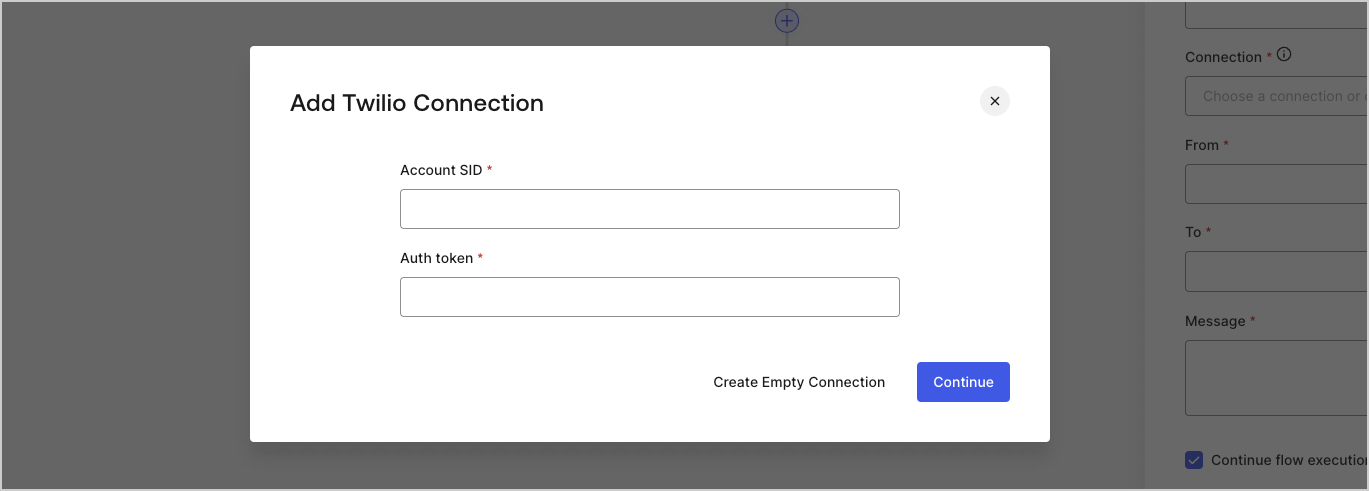
5. Saisissez les identifiants.
   Si vous n’avez pas d’identifiants précis, vous pouvez sélectionner **Create an empty connection (Créer une connexion vide)** et ajouter les identifiants plus tard. Les connexions vides affichent une icône orange qui indiquent l’absence d’identifiants.
   <Frame>
     <img src="https://mintcdn.com/docs-staging-feat-docs-5551-enterprise-connect/n0vmFY5vw7GEsQWI/docs/images/fr-ca/cdy7uua7fh8z/yobXanutPRCO3FWek8cOk/bc29e39fb8593cff35e2738234bfe6fe/twilio-vault-settings.png?fit=max&auto=format&n=n0vmFY5vw7GEsQWI&q=85&s=9d5959f98e02980c74cf793e42cecb72" alt="Dashboard > Forms > Vault > Twilio connection settings" data-og-width="1369" width="1369" data-og-height="491" height="491" data-path="docs/images/fr-ca/cdy7uua7fh8z/yobXanutPRCO3FWek8cOk/bc29e39fb8593cff35e2738234bfe6fe/twilio-vault-settings.png" data-optimize="true" data-opv="3" srcset="https://mintcdn.com/docs-staging-feat-docs-5551-enterprise-connect/n0vmFY5vw7GEsQWI/docs/images/fr-ca/cdy7uua7fh8z/yobXanutPRCO3FWek8cOk/bc29e39fb8593cff35e2738234bfe6fe/twilio-vault-settings.png?w=280&fit=max&auto=format&n=n0vmFY5vw7GEsQWI&q=85&s=7dd4e54ac1bf7b707ec9f08ca62819cd 280w, https://mintcdn.com/docs-staging-feat-docs-5551-enterprise-connect/n0vmFY5vw7GEsQWI/docs/images/fr-ca/cdy7uua7fh8z/yobXanutPRCO3FWek8cOk/bc29e39fb8593cff35e2738234bfe6fe/twilio-vault-settings.png?w=560&fit=max&auto=format&n=n0vmFY5vw7GEsQWI&q=85&s=d3cfb08630e4125104ebe65a69f4ae77 560w, https://mintcdn.com/docs-staging-feat-docs-5551-enterprise-connect/n0vmFY5vw7GEsQWI/docs/images/fr-ca/cdy7uua7fh8z/yobXanutPRCO3FWek8cOk/bc29e39fb8593cff35e2738234bfe6fe/twilio-vault-settings.png?w=840&fit=max&auto=format&n=n0vmFY5vw7GEsQWI&q=85&s=775438cba3f4d45fc5a6e3d1ffec762d 840w, https://mintcdn.com/docs-staging-feat-docs-5551-enterprise-connect/n0vmFY5vw7GEsQWI/docs/images/fr-ca/cdy7uua7fh8z/yobXanutPRCO3FWek8cOk/bc29e39fb8593cff35e2738234bfe6fe/twilio-vault-settings.png?w=1100&fit=max&auto=format&n=n0vmFY5vw7GEsQWI&q=85&s=e85cf3bdbe24277fee5aae13c7c91a3b 1100w, https://mintcdn.com/docs-staging-feat-docs-5551-enterprise-connect/n0vmFY5vw7GEsQWI/docs/images/fr-ca/cdy7uua7fh8z/yobXanutPRCO3FWek8cOk/bc29e39fb8593cff35e2738234bfe6fe/twilio-vault-settings.png?w=1650&fit=max&auto=format&n=n0vmFY5vw7GEsQWI&q=85&s=84d8ebd3961ae980d3385d80f913cdaf 1650w, https://mintcdn.com/docs-staging-feat-docs-5551-enterprise-connect/n0vmFY5vw7GEsQWI/docs/images/fr-ca/cdy7uua7fh8z/yobXanutPRCO3FWek8cOk/bc29e39fb8593cff35e2738234bfe6fe/twilio-vault-settings.png?w=2500&fit=max&auto=format&n=n0vmFY5vw7GEsQWI&q=85&s=02a3b9b24f25fb8d3fa926a19db5de04 2500w" />
   </Frame>

6. Sélectionnez **Add Vault Connection (Ajouter une connexion au coffre-fort)**.
